What happens on first launch
A new installation opens the License interface while the audio device remains closed. The WebApp stays available so the installation can be licensed without using a terminal. A usable license must grant the Live core feature; signing in to a browser account alone does not replace the product license.
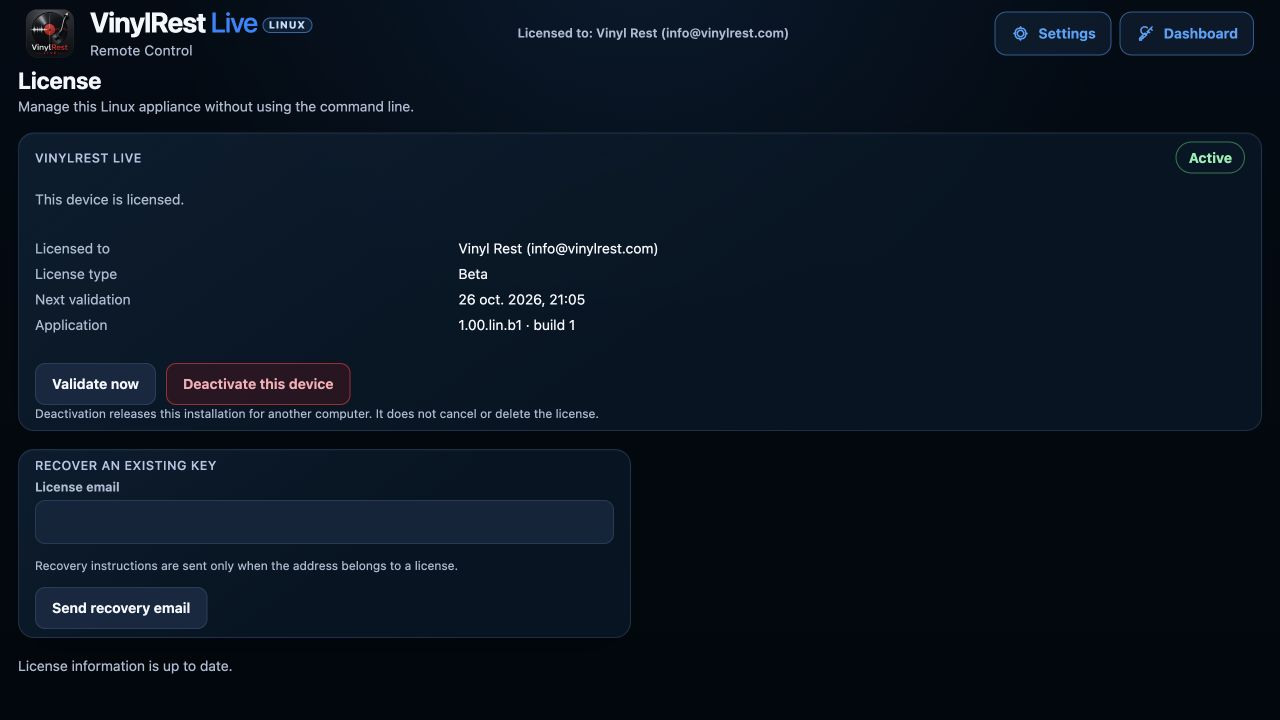
- Open the License page in the local WebApp.
- Choose the normal path for the account: request access, enter an existing key or recover a key.
- If an older installation must be replaced, review the explicit confirmation before continuing.
- Complete activation, wait for signed authorization to be verified, then return to the dashboard.
- Select Start only after the license is shown as usable.
The Linux edition shares the VinylRest Live customer license and installation-seat pool with other Live platforms. Deactivation releases this installation's authorization; it does not cancel the customer's whole license.
Read the license status
- Usable
- The signed authorization grants the core feature and remains inside its validation policy. Audio may start when the audio route is otherwise ready.
- Required
- Keep the WebApp open, activate a license, or retry after a network or account problem. ALSA remains closed while processing is not authorized.
- Reactivation
- Use the License page when this installation needs to be associated again with an eligible seat.
- Deactivate this device
- Release this installation's seat before retiring or replacing the computer. Do not describe this action as deleting the customer's product license.
Live rechecks license state in the running process. A successful authorization change can start or stop audio without restarting the WebApp, and a later validation failure can close an active audio session.
Keep the installation identity private
The AppImage stores license data outside the read-only application at:
${XDG_STATE_HOME:-$HOME/.local/state}/vinylrest/vinylrest-live-20260728010130/licensekitThis directory belongs to this user and installation. Do not copy it to another computer, include it in a portable AppImage folder, or publish it as a backup. Each installation needs its own authorized identity.
The raw license key is not retained by the browser, service or license store after activation. The form uses a short-lived, single-use envelope so credentials do not remain in persistent Web state or ordinary request logs.
Network security still matters
Every license-mutating route requires a JSON request and a same-application custom header, and cross-origin access is disabled. These controls reduce accidental cross-application requests; they do not provide a browser login, transport encryption or protection from someone who can already access the trusted network.
Recovery and headless operation
The browser workflow is the normal customer path. Local non-echoing license commands remain available for administrator and service recovery, but they are not required for a normal desktop installation. License keys and personal information are not accepted as ordinary command-line arguments.
Before clearing local license data, prefer Deactivate this device. Clearing files can remove local authorization without releasing the former installation seat on the service.
AppImage updates and state
The stable AppImage checks the signed stable release channel at startup and hourly while Live is running. Installing an update requires confirmation. Live verifies the release identity, exact size and SHA-256, then restarts the application rather than the computer. The previous AppImage is retained for startup-failure rollback.
The published stable feed is the signed stable manifest. Artifact files are immutable and live below the fixed x86_64 releases path; the app never follows update redirects.
Replacing the AppImage does not overwrite the XDG settings, license state or desktop lock. Keep the state directory in the same user account when updating. If the AppImage is in a non-writable location, move it to a user-writable directory before accepting an update.