The main window
Application header
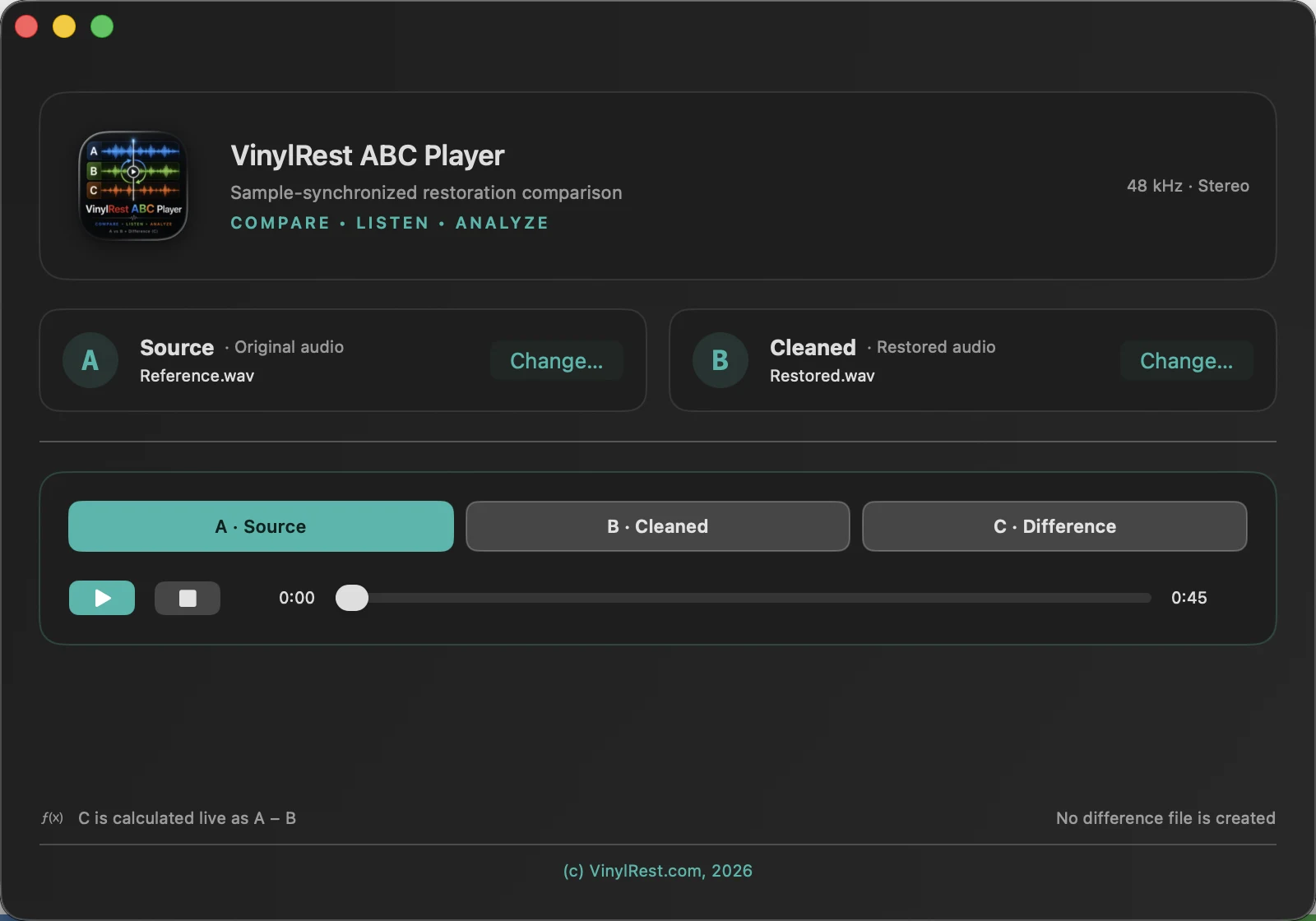
The VinylRest ABC Player icon and name identify the application. The subtitle states its purpose: sample-synchronized A/B/C audio comparison.
A · Source and B · Cleaned file cards
Each card displays the role, filename, sample rate, channel layout and duration. Use Choose A · Source or Choose B · Cleaned to replace one side of the pair.
The labels describe the listening experiment: ABC Player does not inspect the restoration history. You decide which file is the original and which is the processed result.
Monitor buttons
- A Source
- Audible gain is applied only to the original A path.
- B Cleaned
- Audible gain is applied only to the processed B path.
- C Difference
- A is mixed at +1 and B at −1, producing the live A − B signal.
The selected monitor is turquoise. Inactive controls remain visibly outlined. Selecting another monitor changes gains only; it does not restart either audio player.
Shared transport
- Play / Pause
- Starts both files together or pauses them at the same frame. Resuming continues from that shared position.
- Stop
- Stops playback and returns the shared playhead to the beginning.
- Scrubber
- Drag to seek both files to the same timeline position.
- Time readout
- Shows the current position and total duration.
- Format readout
- Confirms the active pair’s sample rate and mono/stereo channel layout.
Keyboard shortcuts
| Action | Shortcut |
|---|---|
| Choose A · Source | Command–O |
| Choose B · Cleaned | Shift–Command–O |
| Select A Source | Command–1 |
| Select B Cleaned | Command–2 |
| Select C Difference | Command–3 |
| Play or pause | Space |
| Open Settings | Command–, |
Fast comparison: keep one hand on Command–1, Command–2 and Command–3. These shortcuts change the monitor without moving focus away from the listening task.
Appearance
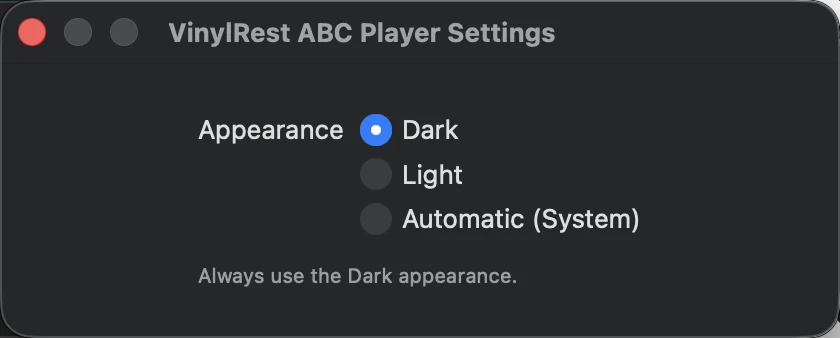
Open ABC Player → Settings or press Command–,. Choose Dark, Light or Automatic. Automatic follows the current macOS appearance.
Footer link
VinylRest — Restore. Compare. Preserve. opens the VinylRest website in your default browser.