Jump to peaks and clipping, tone and convolution, Now Playing or audio problem reports.
The dashboard at a glance
The dashboard combines stereo meters, monitoring, restoration controls and a right-hand detail card. Switch that card between Activity, Now Playing and Sound Shaping without leaving the running session.
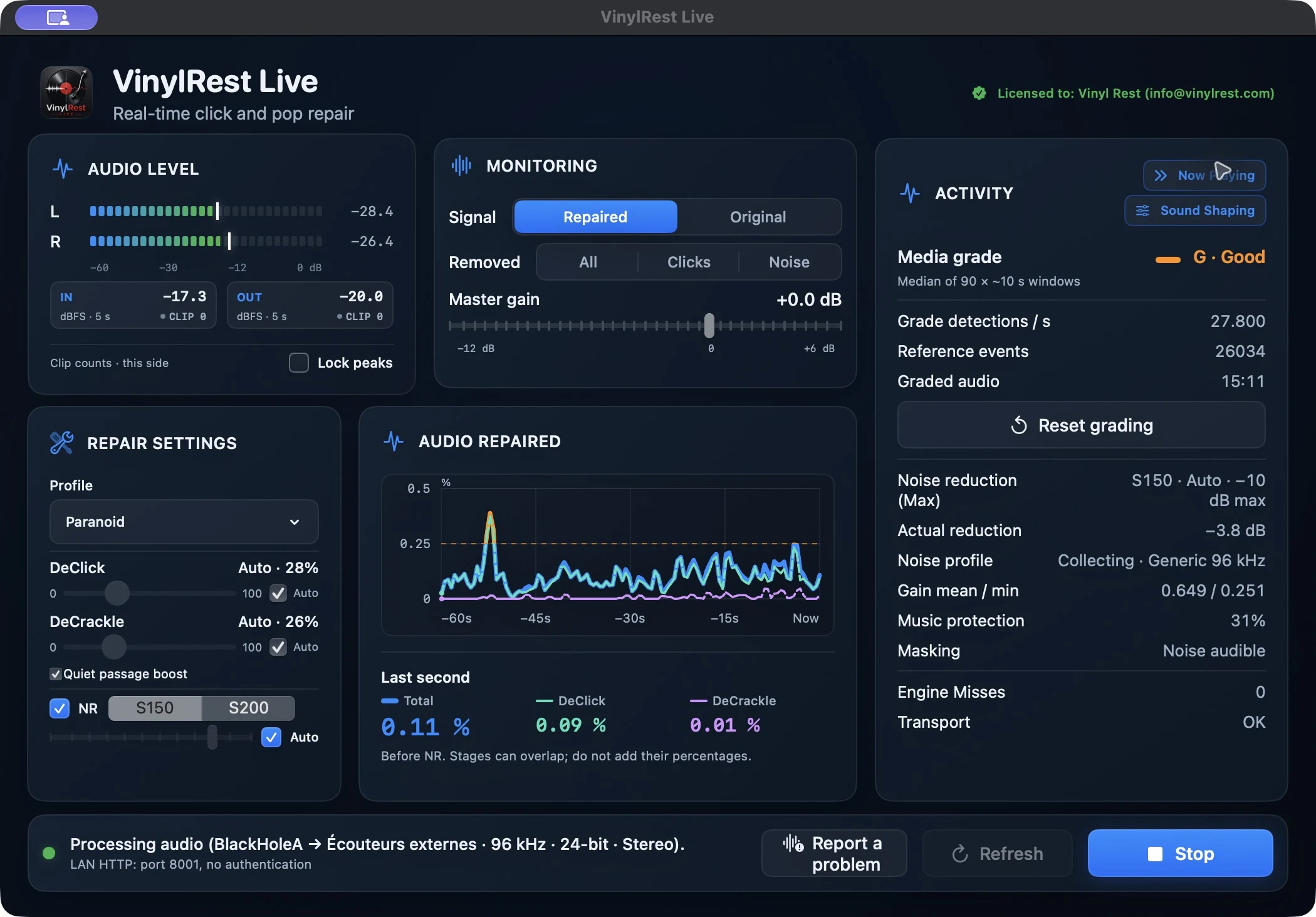
- Audio devices / Audio level
- Select Input, Output and Format while stopped; view stereo output meters and input/output peak diagnostics while running.
- Monitoring
- Select Repaired, aligned Original or the removed All, Clicks or Noise signal. Master gain adjusts the selected output.
- Repair settings
- Independent DeClick and DeCrackle sensitivities and Auto controls, quiet-passage boost, Subsonic, Bass mono and S150/S200 noise reduction.
- Audio Repaired
- The percentage of stereo frames changed by the click/crackle stages over the latest 60 audio seconds.
- Activity / Now Playing / Sound Shaping
- Diagnostics, recognized music or tone and convolution controls.
- Status footer
- The active audio route, format, transport and LAN server status, with Start or Stop.
Audio devices while idle
Select the stereo Input receiving the phono-stage signal, the listening Output and one exact common Format. Select Refresh after connecting or waking hardware. No common format means the selected pair cannot start together as configured. Stop before changing devices or format; an external device-rate change stops the session rather than silently reconfiguring it.
Audio level and peak indicators
The L/R bars show the selected output signal after monitoring, sound shaping and Master gain, on a −60 to 0 dBFS scale. Lock peaks holds the highest meter markers; it does not reset the separate clipping counters.
- IN / OUT
- The highest input and output sample peaks across both channels over the most recent five seconds.
- CLIP
- Counts contiguous full-scale episodes for the current record side, separately for input and output. A new side resets these counters. They are sample-peak diagnostics, not true-peak measurements or proof that an analogue stage is clean.
Monitoring
- Repaired
- The normal listening path, including enabled restoration, Warmth/Air and convolution.
- Original
- The time-aligned original input. Convolution also applies here when enabled; Warmth/Air does not. Turn convolution Off and restart if you need to compare without the room filter.
- All
- The removed contribution from click/crackle repair and noise reduction together.
- Clicks
- The removed contribution from DeClick and DeCrackle.
- Noise
- The removed contribution from noise reduction alone.
- Master gain
- −12.0 to +6.0 dB in 0.5 dB steps, after the selected monitoring path. +0.0 dB is unity. It does not change detection or grading.
Monitoring selection does not change Auto, grading or the repair graph. Removed signals are diagnostic listening choices, not normal programme playback.
Repair settings
- Correction profile
- Paranoid, Light, Mid, High or saved Custom. Mid is the fresh-install default. AutoNG uses separate grade-dependent DeClick and DeCrackle sensitivity curves; NR has its own grade limits.
- Generation
- Fixed NG2, with sequential DeClick → DeCrackle processing.
- DeClick / DeCrackle
- Independent integer sensitivities from 0–100%. Zero bypasses that stage without changing prepared latency. Auto owns the effective slider while preserving the manual value underneath.
- Quiet passage boost
- Can strengthen automatic click/crackle repair in quiet passages. Threshold and maximum boost are configured in Settings → Audio; it does not change the displayed media grade or NR limits.
- Subsonic / Bass mono
- Optional low-frequency conditioning, shown at 20 Hz and 150 Hz respectively.
- NR
- S150 is the conservative noise-reduction profile; S200 is stronger. The manual maximum is 1–12 dB. NR Auto follows the shared grade limits and locks the slider.
- Relearn noise
- Requests fresh acquisition without rebuilding the transport. Generic fallback or an existing profile may remain active while a new local profile is prepared.
See Repair and NR for the current profile tables and acquisition rules.
Audio Repaired is not grading
The graph measures the proportion of stereo frames actually changed by DeClick and DeCrackle, before NR and output shaping. A frame counts once if either channel changed. Overlapping stage contributions are not added twice, so the total is not the sum of the two stage percentages.
- The history covers the latest 60 audio seconds; the numeric readout describes the latest second.
- Blue: below 0.25%; orange: 0.25% to below 2%; red: 2% or above.
- These activity colors are not record grades, event counts or an assessment of restoration quality.
- Changing the monitoring signal or resetting grading does not redefine this measurement.
Activity
Activity shows the experimental media grade, median reference detections per second, cumulative reference events, graded duration and Reset grading. Noise-reduction diagnostics show the selected engine and maximum, profile state, actual gain, music protection and masking. Engine Misses, transport XRuns and Errors help identify processing or hardware problems.
The grade uses an independent reference and complete windows of about ten seconds. It need not follow the Audio Repaired percentage. End-of-side silence pauses cumulative grading and recognition while retaining the last grade; two seconds of sustained returning input qualify the next side.
Sound Shaping: Warmth, Air and convolution
Warmth and Air
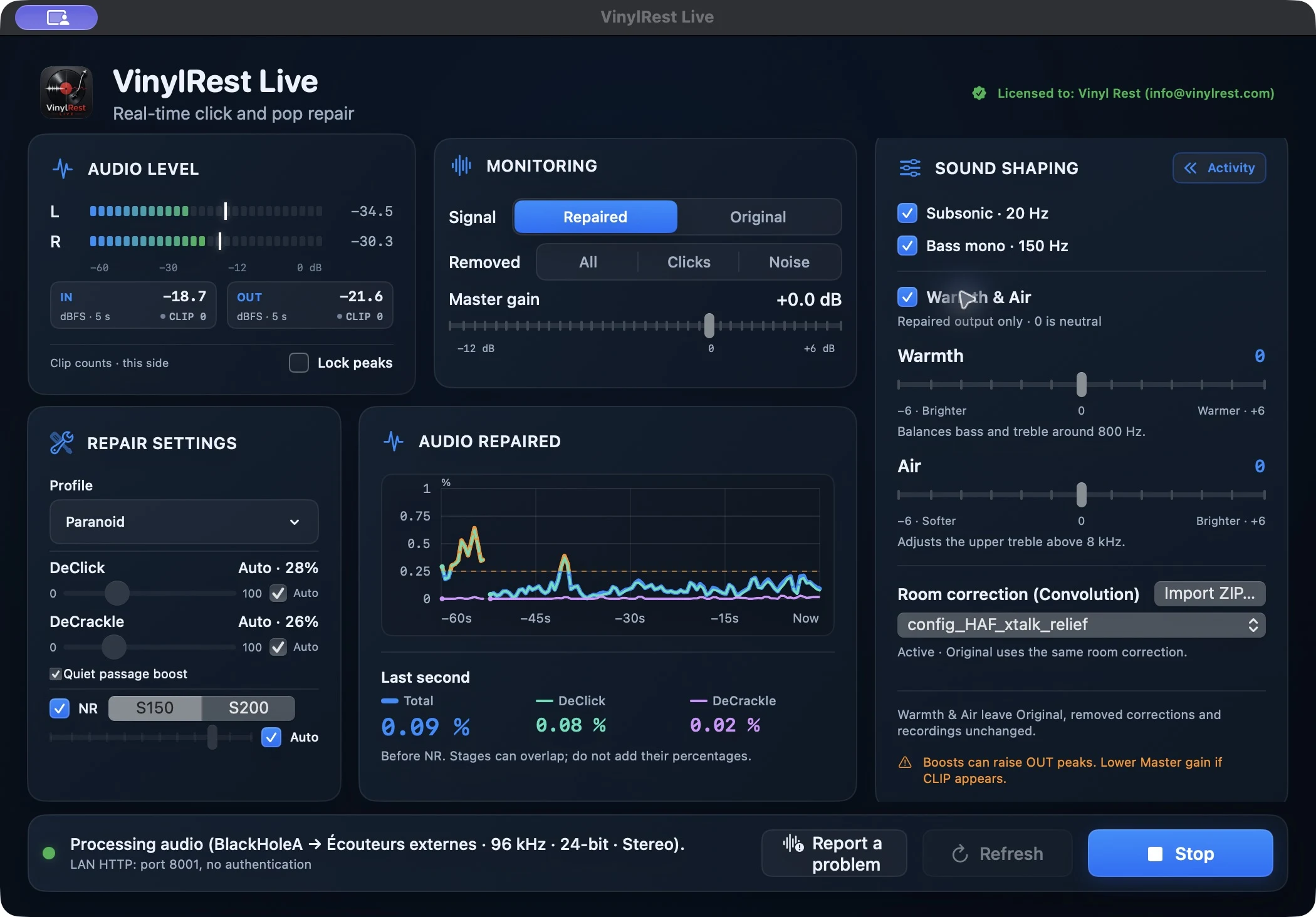
Enable the shared tone control, then adjust Warmth and Air from −6 to +6 dB. Warmth shapes the bass/treble balance around 800 Hz; Air shapes the upper range above 8 kHz. Zero is neutral. Disabling the control bypasses both while remembering their values.
Tone affects Repaired only, not Original, recognition, grading, noise-profile acquisition or recordings. Positive boosts consume headroom: watch OUT and CLIP and reduce Master gain when necessary.
Import and activate a room filter
- Obtain a compatible stereo convolution ZIP from your filter provider. Home Audio Fidelity supplies compatible custom filters. Supported Roon-format stereo matrix packages can also be used; not every package intended for Roon has a compatible layout.
- In the native Mac application, open Sound Shaping and select Import ZIP. Keep the original archive as your backup.
- Choose the imported profile in the convolution selector. The library retains imported archives and their available sample rates.
- Choose an audio format whose sample rate is present in the package. Live requires an exact rate match and does not resample the impulse responses.
- If audio is running, the selection is Pending. Select Stop, then Start manually to apply it. Selecting Off also takes effect at the next manual start.
- Confirm the active profile and rate, listen at a modest level and check output peaks and transport diagnostics.
The supported package describes four stereo matrix routes (left→left, right→left, left→right, right→right), with zero route delays and compatible equal-length stereo PCM32 WAV impulse responses. A bare WAV, plug-in or arbitrary ZIP is not an equivalent import. An invalid archive or missing session rate produces an explicit error rather than a substitute filter.
The WebApp can select an already imported profile but cannot import archives. Compatibility describes the supported filter format, not a Roon plug-in or certification.
Now Playing and Discogs
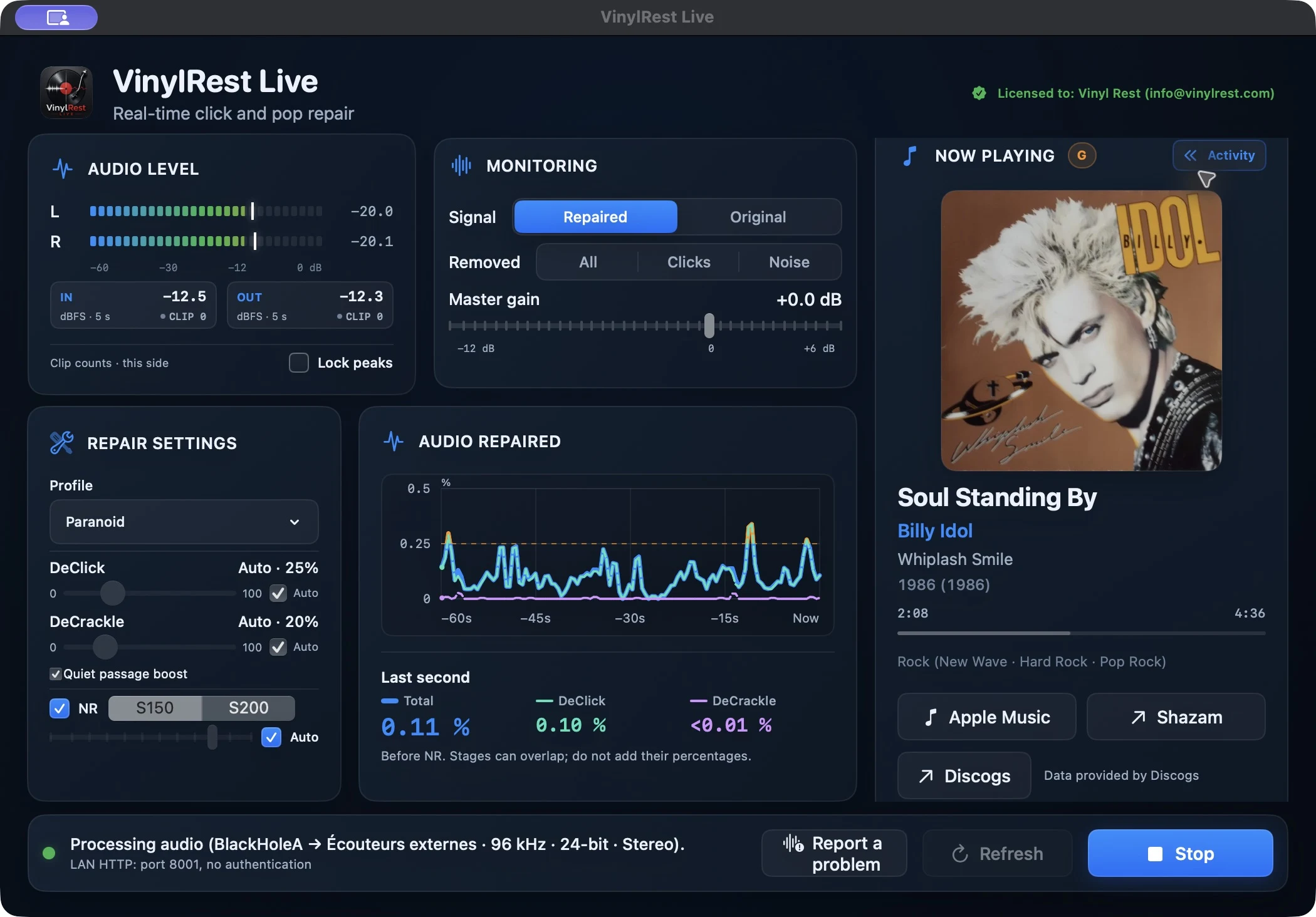
Optional Shazam recognition displays the title, artist, album, artwork and available music links. It is best-effort and needs Internet access; failed or incorrect matches never change the audio engine. Enable or disable recognition in Settings → UI.
An optional Discogs personal access token enables album lookup and artwork enrichment. Without a token, Live makes no Discogs lookup requests. See Recognition and Discogs settings for setup and token storage precautions.
Immersive Now Playing
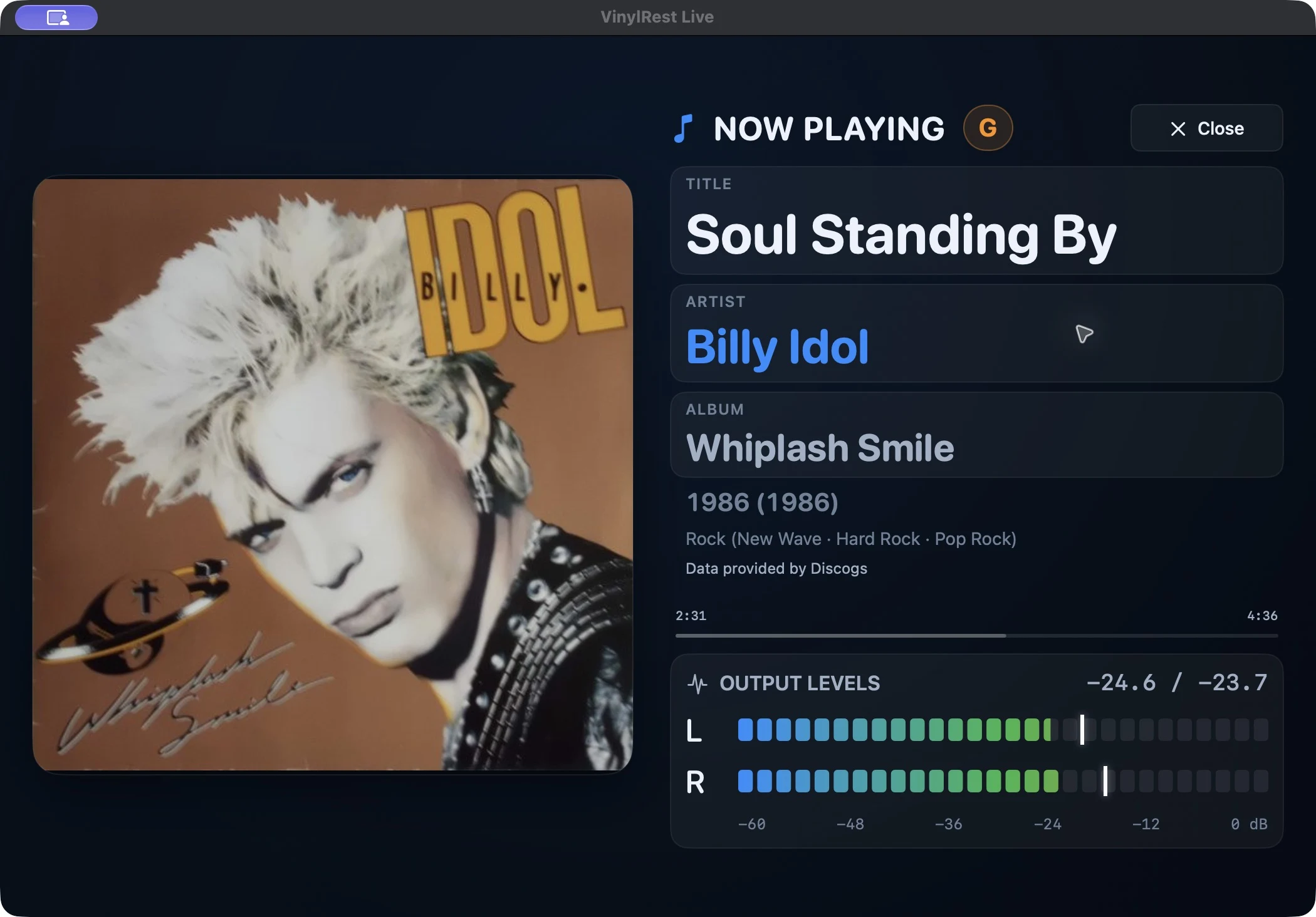
Select the artwork to open the immersive view. Landscape places artwork beside metadata and meters; narrow windows stack them. Select Close, select the artwork again or press Escape to return. Meter appearance and separate Mac/WebApp landscape-alignment settings are under Settings → UI. The optional idle clock is described in Display and idle clock.
Capture, review and report an audio problem
Native Mac workflow: capture first, send separately
- While the problem is audible, select Report a problem or Audio diagnostics → Report a problem (
⌘⇧D). The rolling buffer includes up to ten seconds before the marker and five seconds after it. Repeated markers extend the same capture, up to 30 seconds and 32 markers. - Open Audio diagnostics → Review audio captures…. Capture is local: it does not automatically send audio.
- Stop Live before previewing Original or Repaired. Preview uses the Mac's current output device. Starting or configuring Live ends preview.
- Review the audio and diagnostic context, optionally export a copy to a new directory, then choose Send only when you intend to upload it and accept the displayed agreement.
- Leave a contact email only if you want one associated with the report. Clear the prefilled address for an anonymous report; email notification is a separate opt-in.
- Check the result and keep the receipt. A server receipt means the report was accepted, not that someone has already reviewed it.
Local captures contain the original input, intermediate repair stages and repaired audio, plus a manifest. They are taken before convolution and hardware output. Startup or interruptions can shorten the available history; Live does not invent silence to fill it. Saved captures are not automatically deleted.
Remote WebApp: Send audio problem uploads directly
Send audio problem requests the capture and then starts an anonymous background upload of audio and context. It does not open the native review/consent workflow or ask for a contact email. Use it only when you intend to send that audio. Closing or refreshing the page does not cancel an accepted job; a retry uses the same frozen report rather than recording a different one.
After an application restart, a stored unfinished report requires an explicit retry; it is not automatically uploaded at launch. For connection or storage errors, see Report troubleshooting.
Status footer
The footer identifies the current route, format, running state and optional LAN server. Start configures and primes the selected route; Stop shuts it down. During shutdown the button shows Stopping…; after a transport failure, Reset returns to a configurable state.