Enable the WebApp
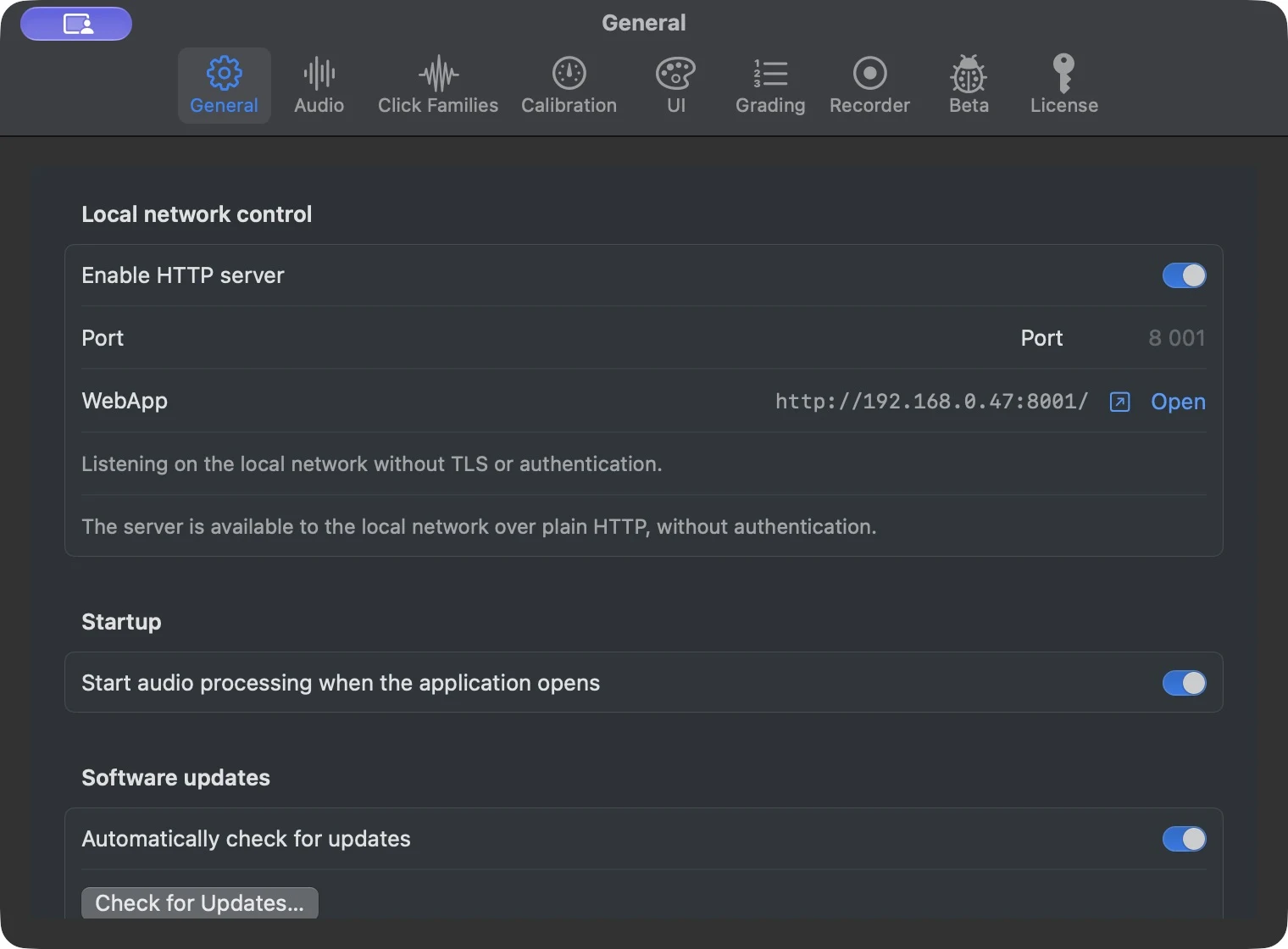
- On the Mac, open Settings → General.
- Enable HTTP server. The default port is
8001. - Note the WebApp address shown by VinylRest Live, for example
http://192.168.0.47:8001/. - Connect the remote device to the same local network as the Mac.
- Enter the displayed address in Safari or another browser.
403 Forbidden while access is blocked.Responsive layouts
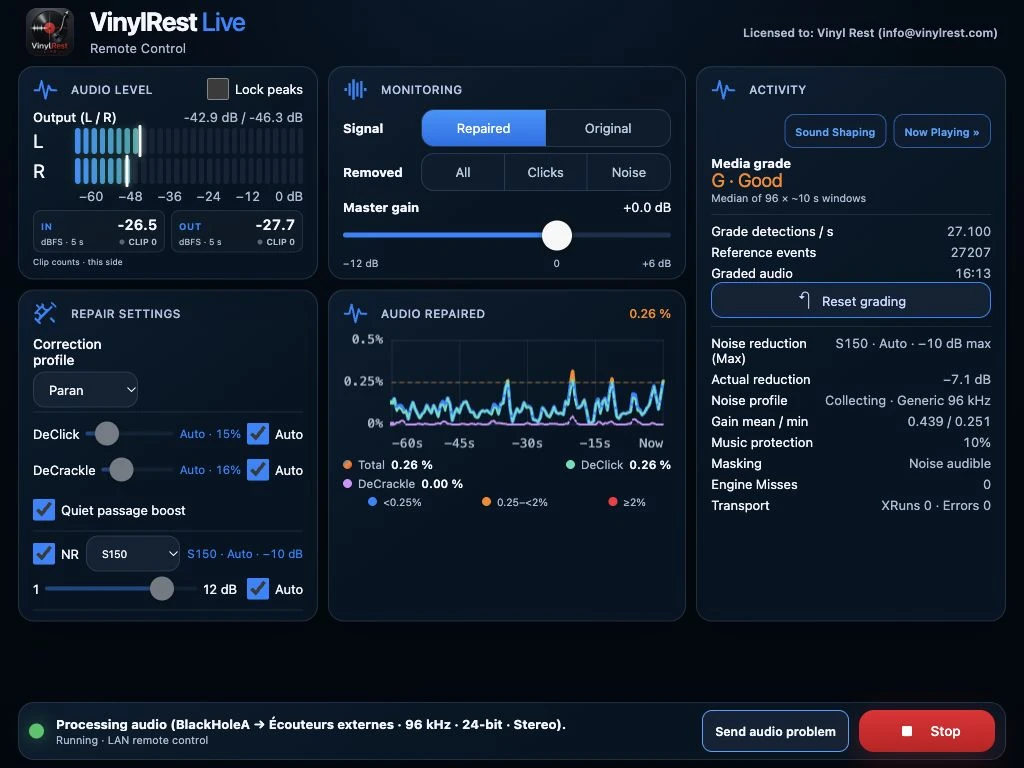
Desktop and landscape tablet
A wide screen uses the same functional arrangement as the Mac application: Audio Level and Repair Settings on the left, Monitoring and Audio Repaired in the center, and Activity or Now Playing on the right. The status footer remains at the bottom.
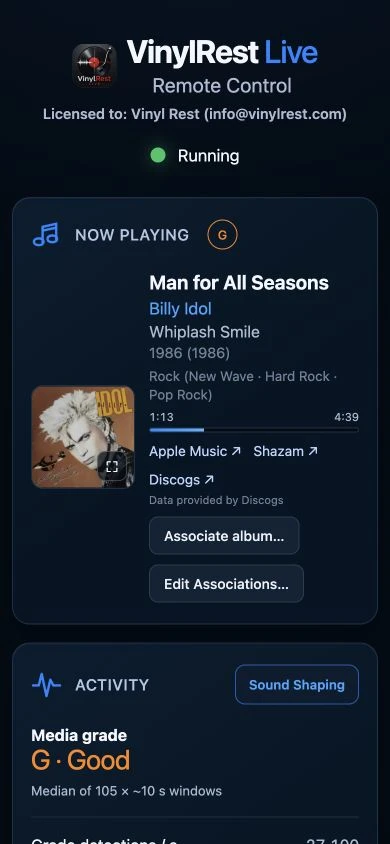
Phone
A phone uses one vertical column. Scroll through Now Playing, Activity, Audio Level, Monitoring, Repair Settings and Audio Repaired. Fixed NG2, both stage controls, NRNG S150/S200 and Relearn remain available, and Start or Stop appears at the end of the page.
Controls available remotely
- Start / Stop
- Starts or stops the configured Mac audio path.
- Signal
- Select Repaired or Original, or isolate All, Clicks or Noise for the output monitored by the Mac.
- Master gain
- Adjusts software gain from −12 to +6 dB.
- Repair settings
- Select Paranoid, Light, Mid or High, view the fixed NG2 generation, then control independent DeClick and DeCrackle manual/Auto sensitivities. Choose S150 or S200, enable NR Auto and use Relearn when a fresh noise profile is needed.
- Grading
- Read the current grade and reference statistics, or reset the grading session.
- Sound Shaping
- Adjust Warmth/Air and choose an already imported convolution profile. Importing ZIP archives remains native-only. Pending filter changes, including Off, require a manual Stop/Start.
- Send audio problem
- Requests a rolling capture and immediately begins anonymous background upload. This is an upload action, not the native capture-only review workflow.
- Now Playing
- View recognized metadata and artwork, then open available Apple Music, Shazam or Discogs links.
When any Auto control is enabled, its remote slider is locked and follows the effective automatic value without replacing the saved manual value. The selected correction profile supplies independent AutoNG curves for DeClick and DeCrackle, with shared grade-dependent NR limits on both the Mac and the WebApp.
Immersive Now Playing
Select the artwork to open the full-window presentation. It uses large scrolling text, the current grade and live output meters. Select Close or the artwork again to return. Landscape places artwork beside metadata; portrait stacks the content.
Meter appearance follows Settings → UI. The optional idle clock can replace the paused view; click to dismiss it. Safari may not permit forced orientation.
Sound Shaping from the browser
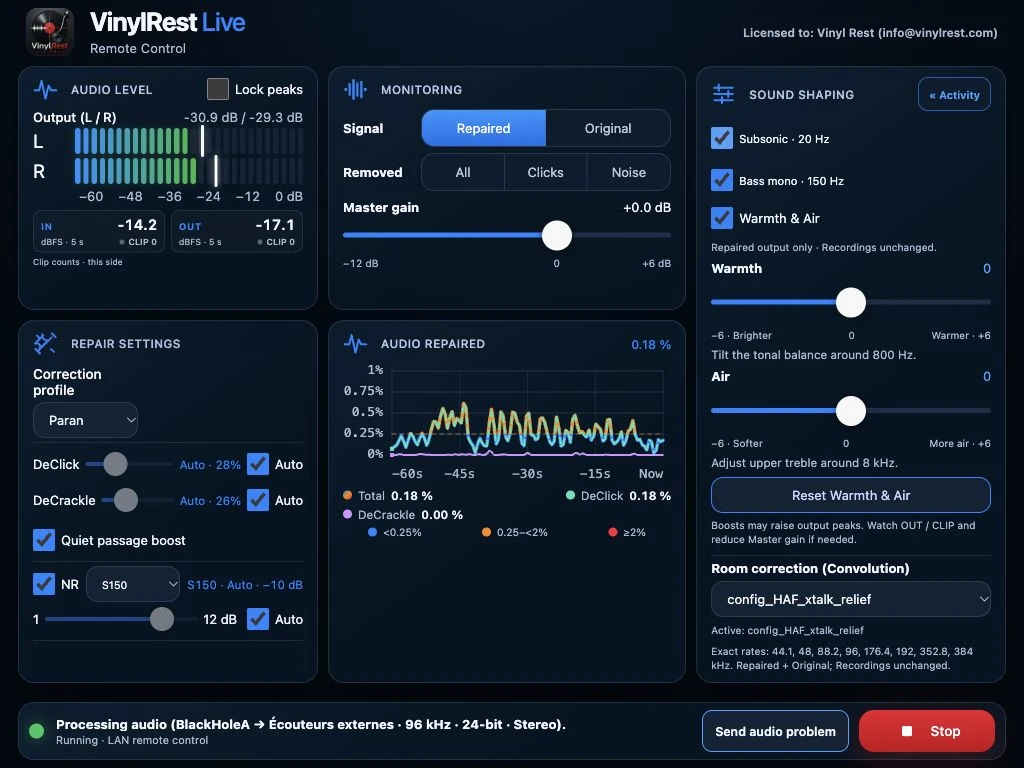
Choose an existing filter and confirm its rate/status. Live never resamples the filter to fit another session rate and does not automatically restart audio after a selection. Warmth/Air is Repaired-only; convolution is shared by Repaired and Original. See the full filter procedure.
Safari does not always allow a website to force device orientation. Rotate the device manually when you prefer the landscape dashboard.
Add to Home Screen
- Open the WebApp address in Safari.
- Open Safari’s Share menu.
- Select Add to Home Screen.
- Launch VinylRest Live from the new icon for a more app-like, standalone view.
Connection behavior
The WebApp receives live state through Server-Sent Events and reconnects automatically when the page returns from the background or the network changes. A connection may briefly show orange while reconnecting.
- Use Refresh if the Mac has changed address or the browser resumed from a long sleep.
- Older Safari and iOS 12 use compatibility fallbacks for the event stream, artwork and layout.
- Close unused WebApp tabs. VinylRest Live intentionally limits concurrent live clients.
Control API
The WebApp uses the preferred versioned API on the same origin. These endpoints are useful for trusted local integrations:
| Route | Purpose |
|---|---|
GET /api/v2/monitoring | Coherent monitoring snapshot |
GET /api/v2/events | Live Server-Sent Events stream |
GET/PUT /api/v2/sensitivity | Manual sensitivity |
GET/PUT /api/v2/automatic-correction | Auto state |
GET/PUT /api/v2/repair-settings | Atomic fixed-generation settings: independent DeClick and DeCrackle manual and Auto values. GET also reports each effective sensitivity. |
GET/PUT /api/v2/correction-profile | Named correction profile. PUT accepts mid and the legacy standard alias; GET, PUT, monitoring and live-event responses retain standard as the stable token for the profile displayed as Mid. |
GET/PUT /api/v2/output | Repaired, Original, All, Clicks or Noise monitoring |
GET/PUT /api/v2/noise-reduction | S150/S200 selection, enablement, manual maximum, Auto policy and acquisition state |
POST /api/v2/noise-reduction/relearn | Start a new NRNG profile acquisition without rebuilding the transport |
GET /api/v2/grading | Current grading snapshot |
POST /api/v2/grading/reset | Reset the grading session |