Download and install the free Beta
Download the current Universal 2 disk image, drag VinylRest Live to Applications and launch it from there. The application runs natively on Apple silicon and Intel Macs.
First launch
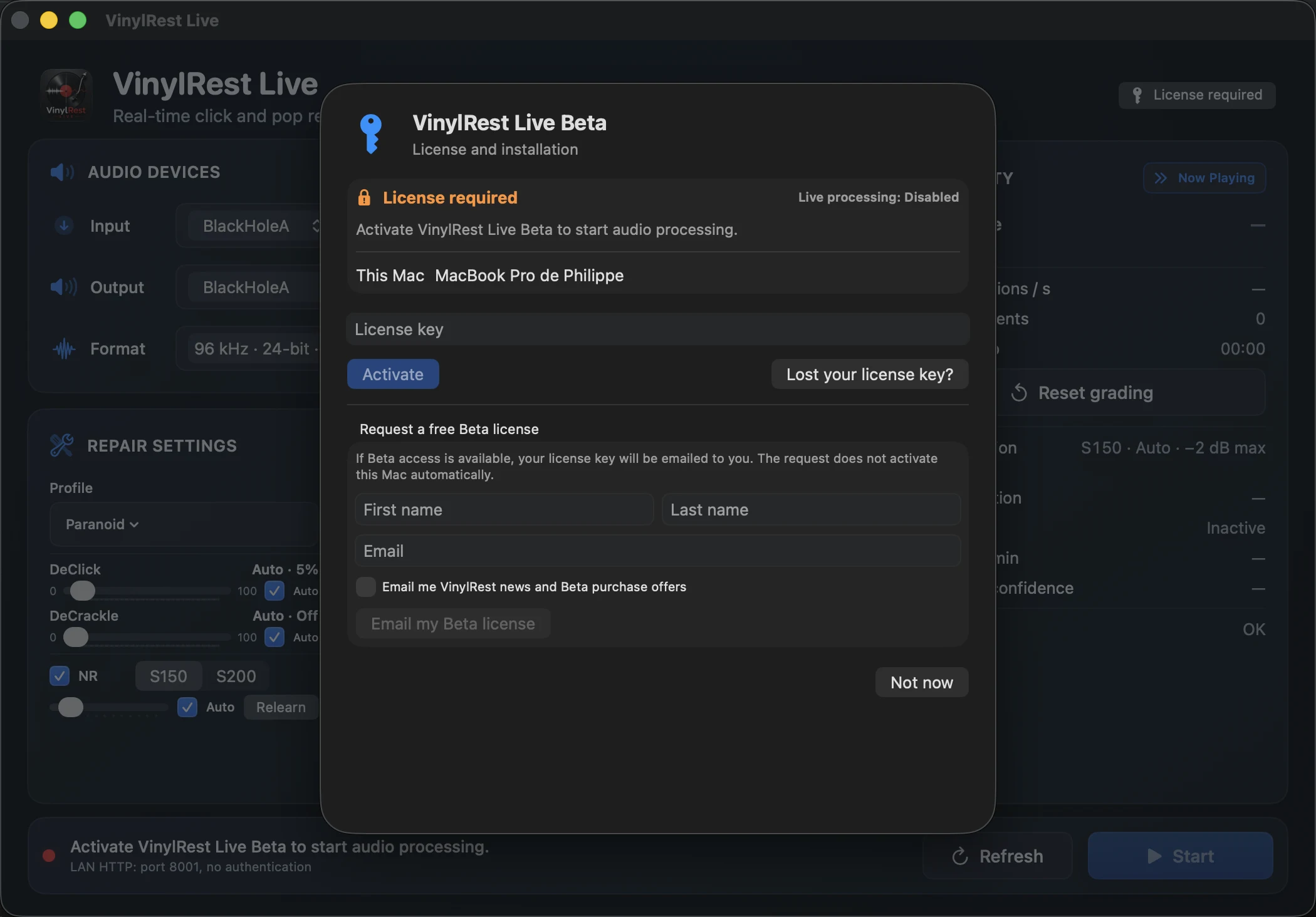
When this Mac has no usable license, VinylRest Live opens License and installation automatically. You can also return to the same controls later from Settings → License.
Request a free Beta license
- Enter your First name, Last name and Email under Request a free Beta license.
- Leave the marketing option off unless you separately want VinylRest news and Beta purchase offers. It is off by default and is not required for the license request.
- Select Email my Beta license.
- Open the message delivered to that address and copy the license key.
The request does not activate this Mac automatically. For privacy, the application displays a neutral acceptance message and the key is delivered only by email.
Activate this Mac
- Paste the complete emailed key into License key.
- Select Activate and keep the Mac online while the request completes.
- Confirm that the application reports Live processing: Enabled and that the dashboard Start button is available.
Validation and offline use
- Normal validation
- VinylRest Live validates at launch when required and normally contacts the license service every seven days.
- Temporary outage
- A transient network failure can use a further two-day network grace period. It does not interrupt the side currently playing.
- Hard invalidation
- New starts are blocked. If a side is already running, Live allows it to finish and stops at the next qualified input silence.
- New application build
- The first launch of an updated build performs the normal online Beta validation for that exact version and build.
If validation is due, open Settings → License, connect the Mac to the Internet and select Validate now. If the clock-rollback warning appears, correct macOS date and time first.
Installations and deactivation
One Beta license supports up to three active installations. When all three slots are occupied, activation identifies the least-recently-used installation and asks for explicit confirmation before replacing it.
- Stop audio processing.
- Open Settings → License.
- Select Deactivate this Mac… and confirm.
Deactivation releases this installation on the license server. Because the key is not stored, you need the original key to activate this Mac again.
Recover a key or an unreadable local vault
Lost license key
Select Lost your license key?, enter the email used for the license and select Email my license key. The response remains neutral and sends mail only when an eligible matching license exists.
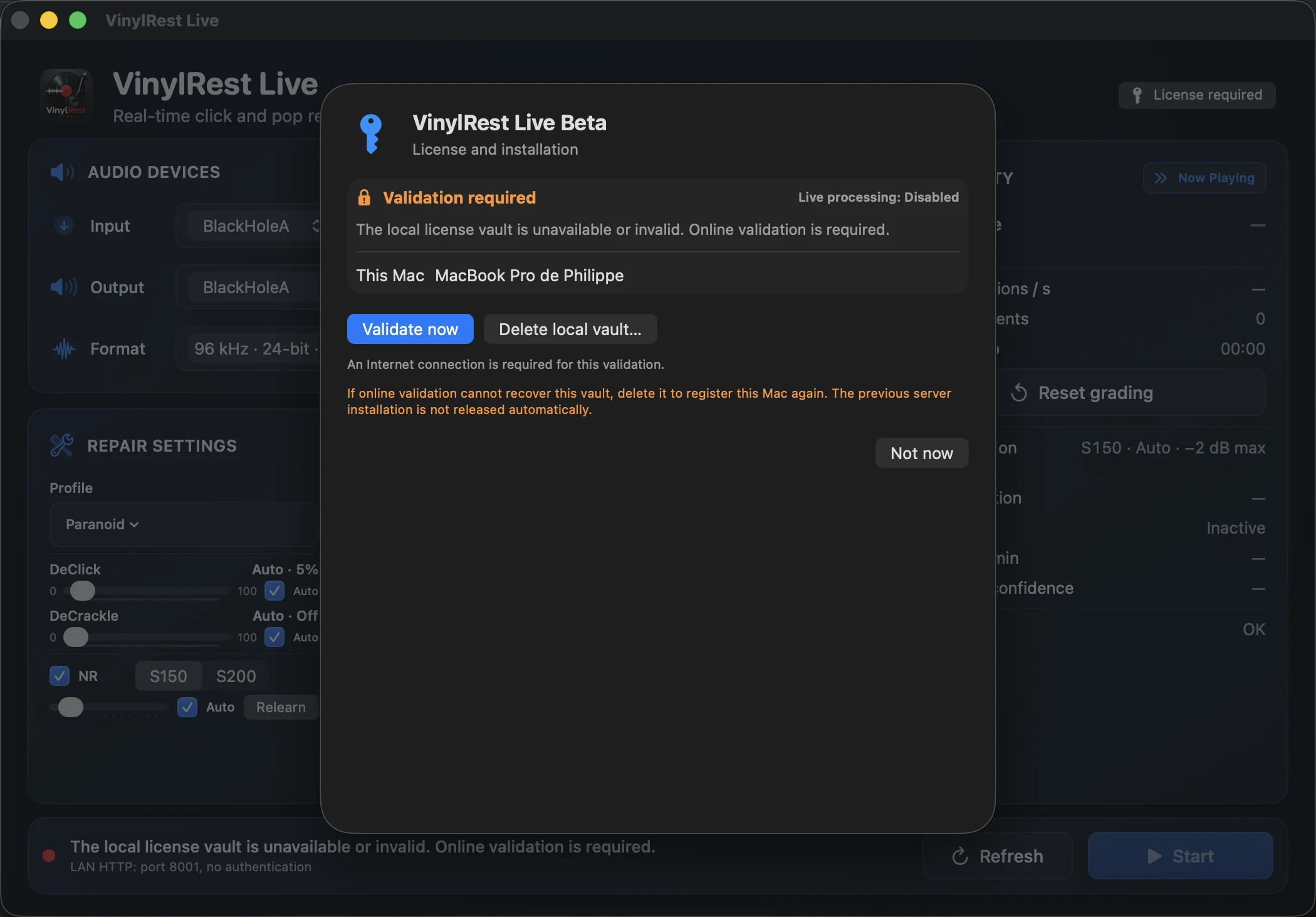
Local license vault is unavailable or invalid
Try Validate now first. If online validation cannot recover the local vault, stop audio and use Delete local vault… to register this Mac again.
Signed Beta updates
The public Release application checks VinylRest's signed Beta update feed. Use VinylRest Live → Check for Updates… when you want to check manually. Installation requires confirmation. Choosing Update stops audio processing, installs the signed update and relaunches Live; plan for an interruption rather than expecting the current side to finish automatically.
If an in-app update is unavailable, download the latest DMG from the link above and replace the application manually. Your compatible encrypted license state is migrated, and the new build then performs its required online validation.
What the LAN WebApp can see
The WebApp can report that a license is required and, while authorized, can display the signed licensee identity on the trusted LAN. It cannot request a Beta license, accept a key, recover a key, validate, replace an installation or deactivate the Mac. A remote Start is refused with 403 Forbidden while the native license gate is closed.