Open Settings from the application menu or press ⌘,. Saved choices return at the next launch. The sections below distinguish immediate changes from those that require a restart of audio.
Jump to buffering, click families, calibration, recognition and Discogs, Custom profiles or optional noise sharing.
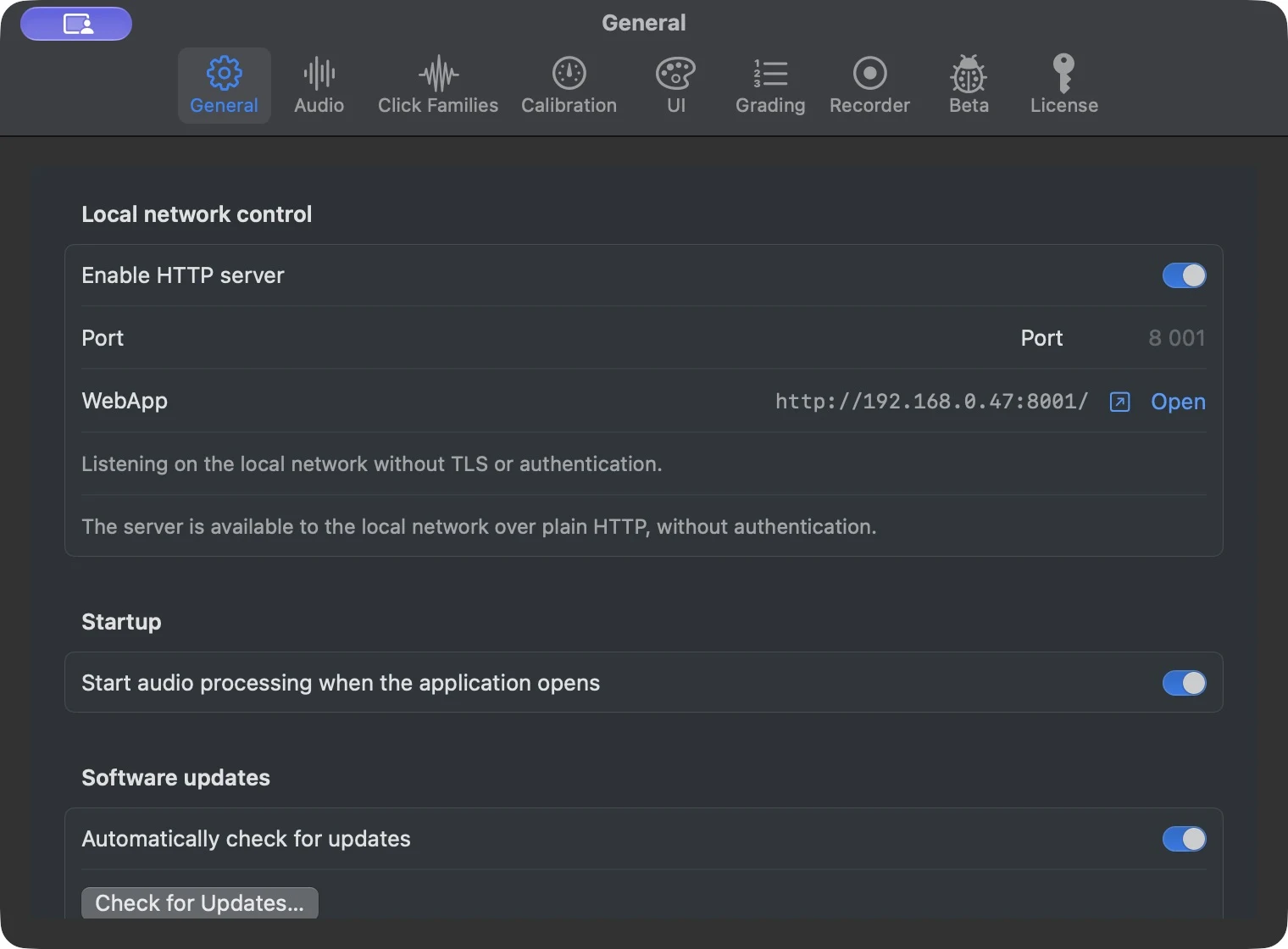
General
- Enable HTTP server
- Starts the local-network WebApp and API. Turn it off when remote control is not needed.
- Port / WebApp
- The default port is
8001. Use the physical LAN address displayed here, not localhost, from another device on the same network. - Start audio processing when the application opens
- Starts the saved route after launch. Leave this off while establishing a new audio setup.
- Automatically check for updates
- Checks the signed Beta feed; installation requires your confirmation.
- Update
- Accepting an update stops audio processing, installs the signed update and relaunches Live. Plan for a listening interruption.
Audio
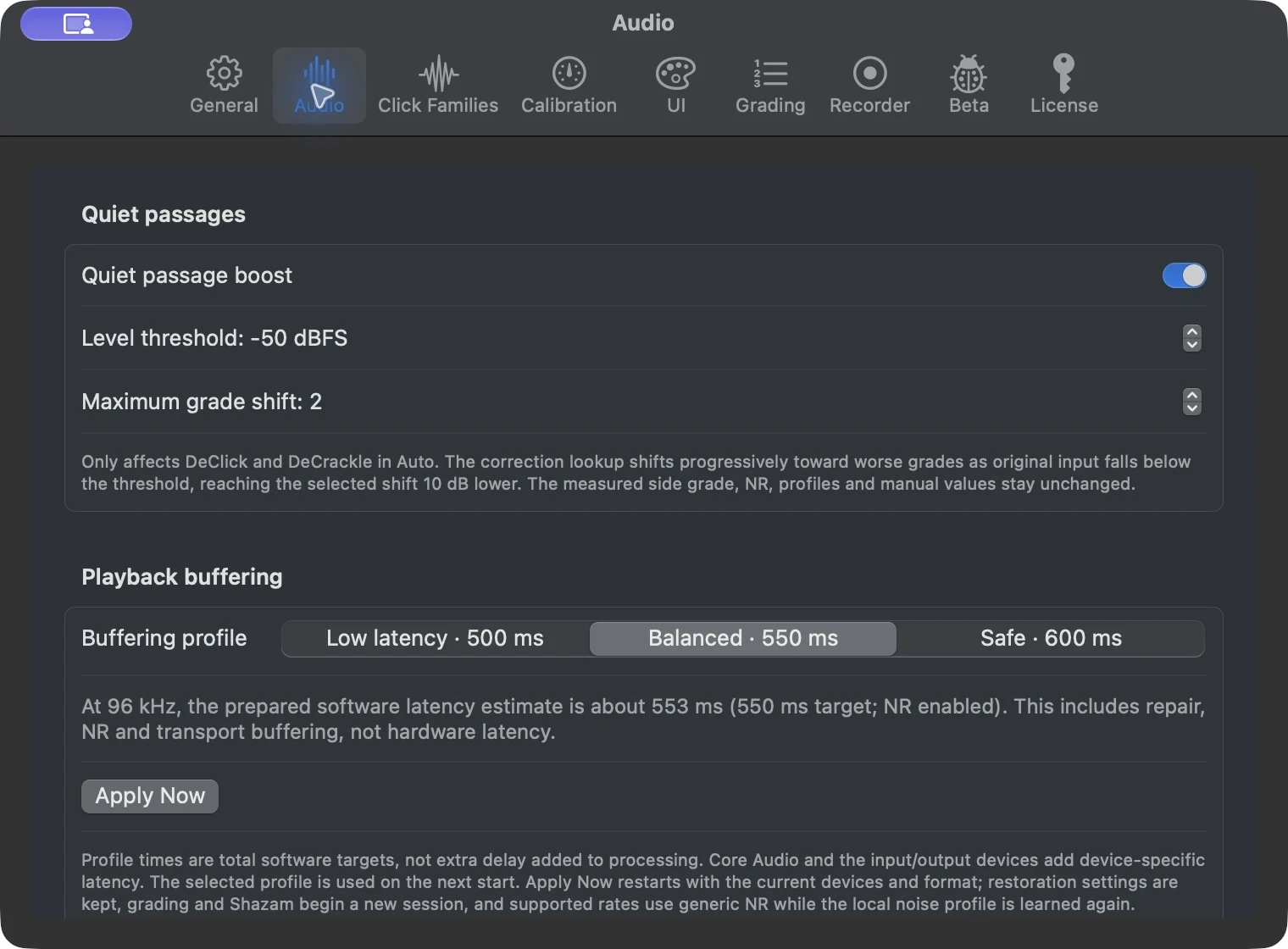
Quiet-passage boost
When enabled, Auto can strengthen DeClick and DeCrackle during quiet passages. Level threshold sets the input threshold (−80 to −20 dBFS); Maximum grade shift bounds the boost (1–7 grades). The WebApp labels these Start below and Maximum increase. This does not change the displayed media grade or NR limits. Listen to percussion and quiet musical detail before increasing the boost.
Playback buffering
| Profile | Total software-latency target | Use |
|---|---|---|
| Low latency | 500 ms | Smallest scheduling reserve; qualify the complete hardware path. |
| Balanced | 550 ms | A middle ground between delay and reserve. |
| Safe | 600 ms | Fresh-install default; greatest reserve against brief scheduling delays. |
These are targets, not end-to-end measurements. Required processing buffers, convolution, device limits, Core Audio and downstream equipment can add delay. The displayed estimate describes the selected format.
A changed profile normally applies at the next Start. Apply Now explicitly restarts the current route: audio is briefly interrupted, grading and recognition start a new session and noise acquisition restarts. Device, format and restoration selections are retained.
NRNG profile acquisition
Maximum capture level ranges from −79 to −30 dBFS; the default is −55 dBFS. It limits the admissible windows used to acquire local surface noise. Live observes a four-second acquisition interval and selects a median-level one-second candidate rather than simply taking the first quiet second. See NRNG acquisition and fallback.
Raising the threshold can admit quiet music. A threshold change applies to the next Relearn or qualified side, not to an already active profile. Prefer input calibration to an arbitrary increase.
Side detection
Silence duration defaults to four seconds; Silence level defaults to −75 dBFS. Sustained input below the threshold ends a side, pauses cumulative grading and recognition, clears stale track metadata and retains the last grade. Two seconds of sustained returning input qualify the next side. A loud system noise floor may require calibration; do not set the threshold high enough to mistake quiet music for silence.
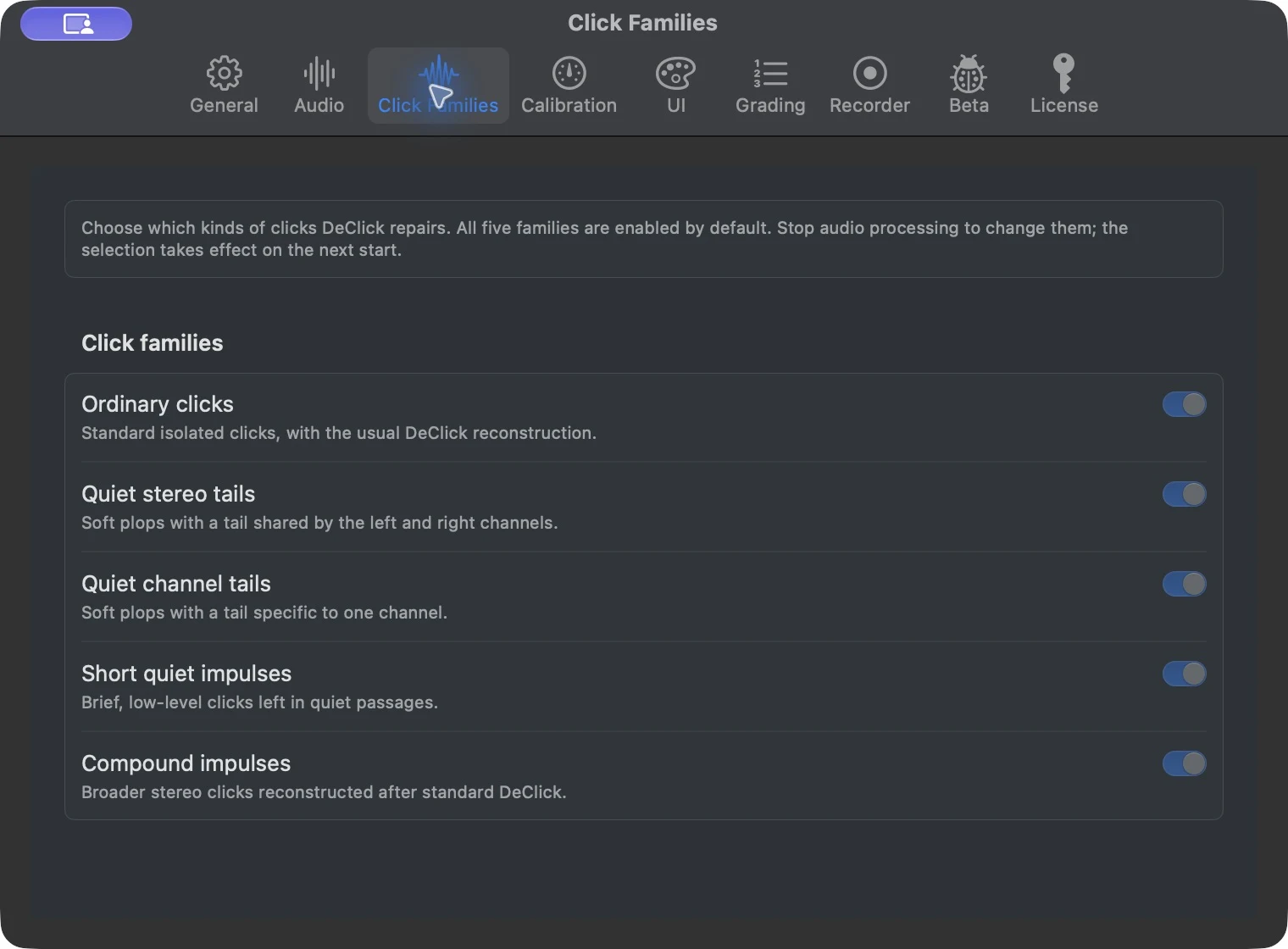
Click Families
The five families are Ordinary clicks, Quiet stereo tails, Quiet channel tails, Short quiet impulses and Compound impulses. They are enabled by default. Stop processing before changing the enabled families; the selection applies at the next Start. These are coverage controls, not alternatives to the separate DeClick and DeCrackle sensitivities.
Input calibration
Calibration measures the raw interface input before restoration and Master gain. It temporarily excludes the calibration audio from grading, noise learning and music recognition; it does not automatically correct input balance.
- Start Live with the intended input, output and format, then open Settings → Calibration.
- For Balance & level, feed the same physical mono signal into left and right inputs: use the preamplifier's mono output or a suitable split of one source channel into both inputs. Ordinary stereo music is not a balance reference.
- Play a strong passage and adjust the hardware input gains so both channels agree and peaks are around −12 dBFS. Stop the balance measurement when finished.
- For System silence, lift the stylus or stop the turntable, leaving the audio path powered. Measure for eight seconds.
- For Surface noise, measure eight seconds of lead-in or a gap containing surface noise but no music.
- Review the measurements and suggestions. Use Apply silence suggestion or Apply NR capture suggestion only after checking that each suits the setup. Suggestions are never applied automatically.
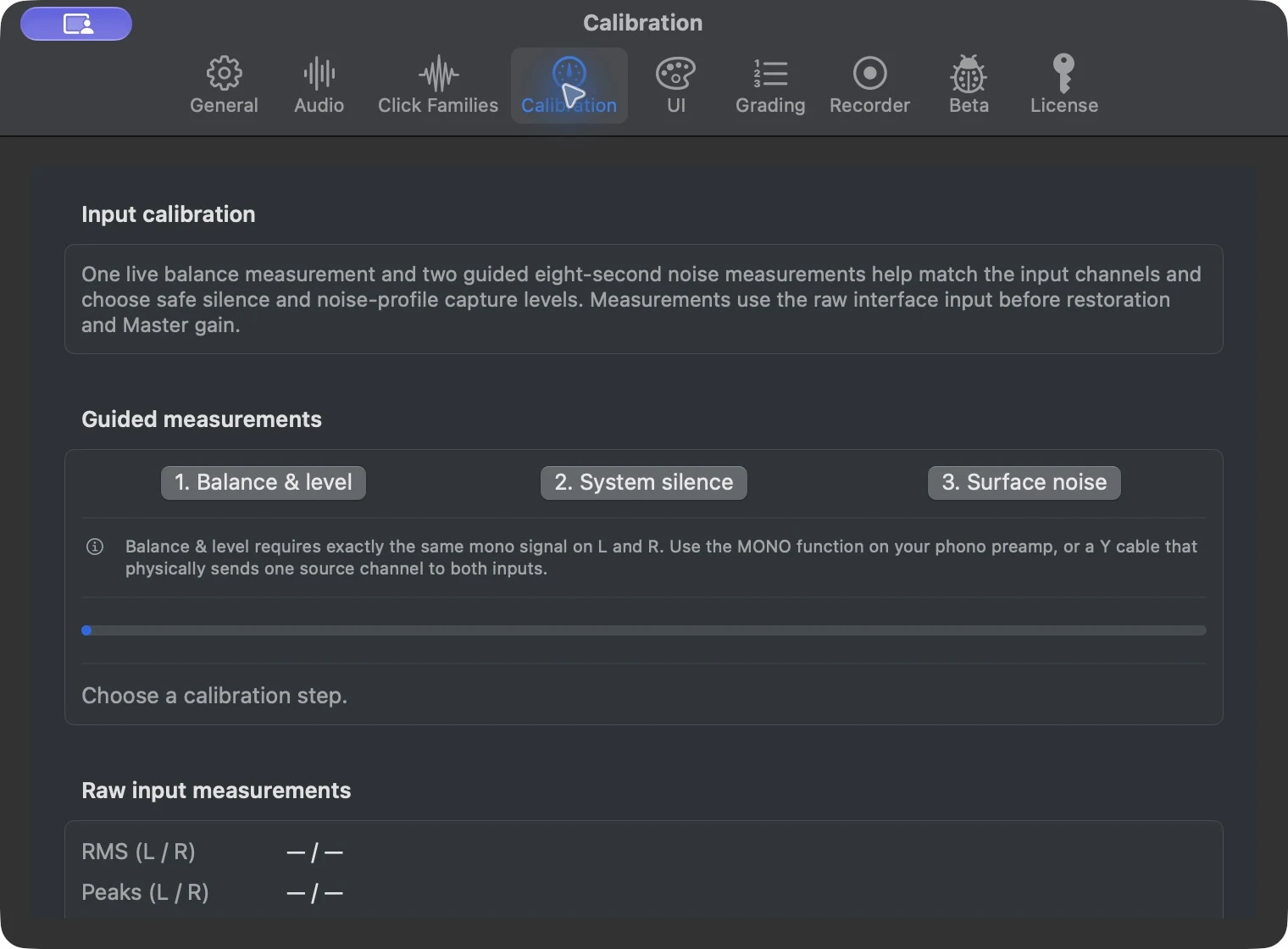
Leaving Calibration stops its measurements. A gain, cartridge or interface change can invalidate a previous setup: repeat the measurements after changing the physical input path.
UI
Recognition and Discogs
- Enable Shazam recognition
- Optional Internet-assisted recognition. Turning it off clears recognized metadata without restarting the audio engine. Restoration does not depend on recognition.
- Clear Shazam at 100% / Clear after
- Clear a completed track after a selected delay of 1–30 seconds (default three). If disabled, retain it until a replacement or side-ending silence.
- Discogs personal access token
- Obtain a token through the native UI link, paste it and select Save. Remove disables its use. With recognition enabled and a token present, Live sends the identified artist/title for optional album and artwork lookup; without a token, it makes no Discogs lookup requests.
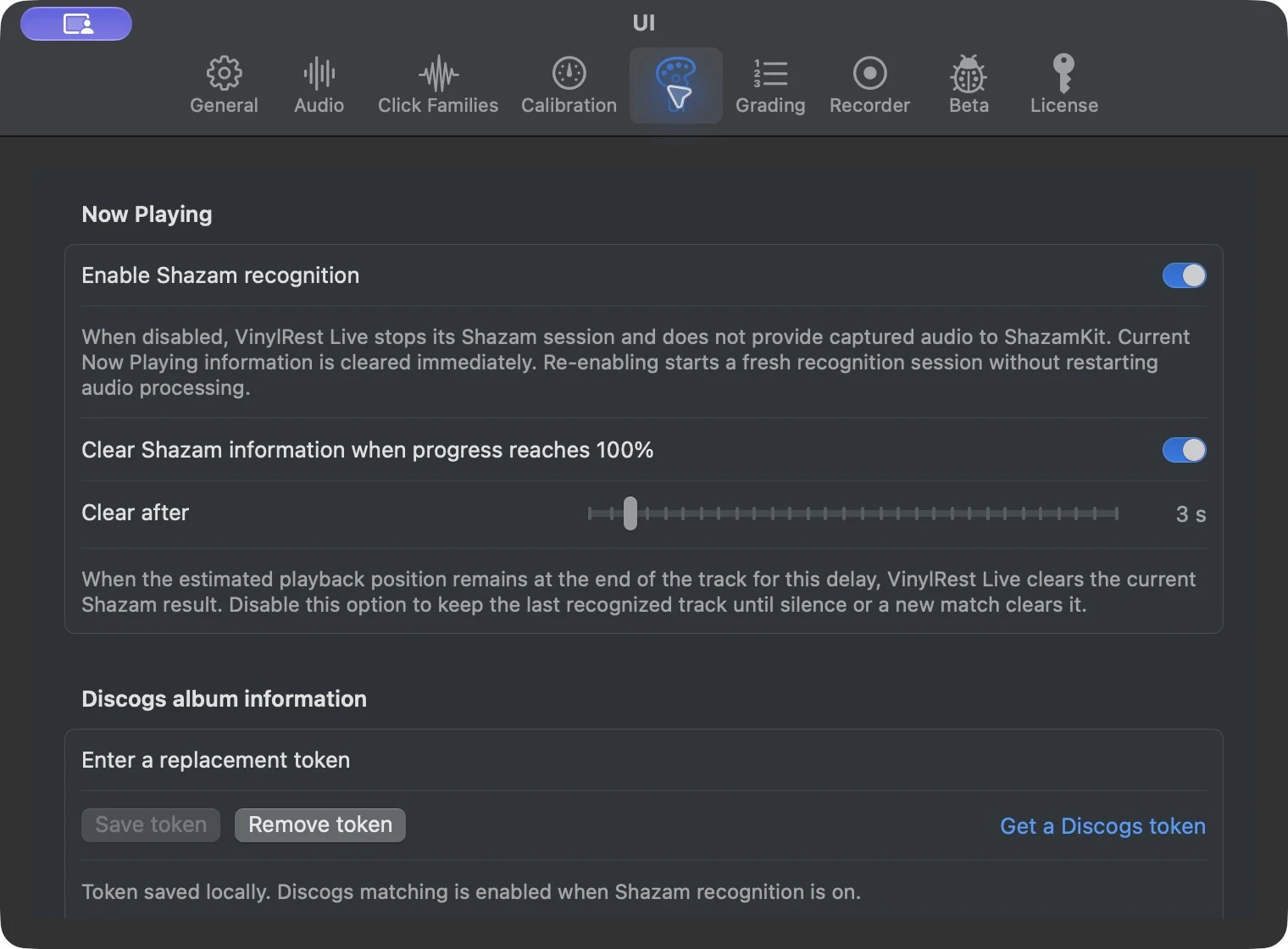
Discogs enrichment favors original album information rather than compilation metadata where possible, with recognition artwork as fallback. Catalog matches remain informational and do not alter audio processing.
Display and idle clock
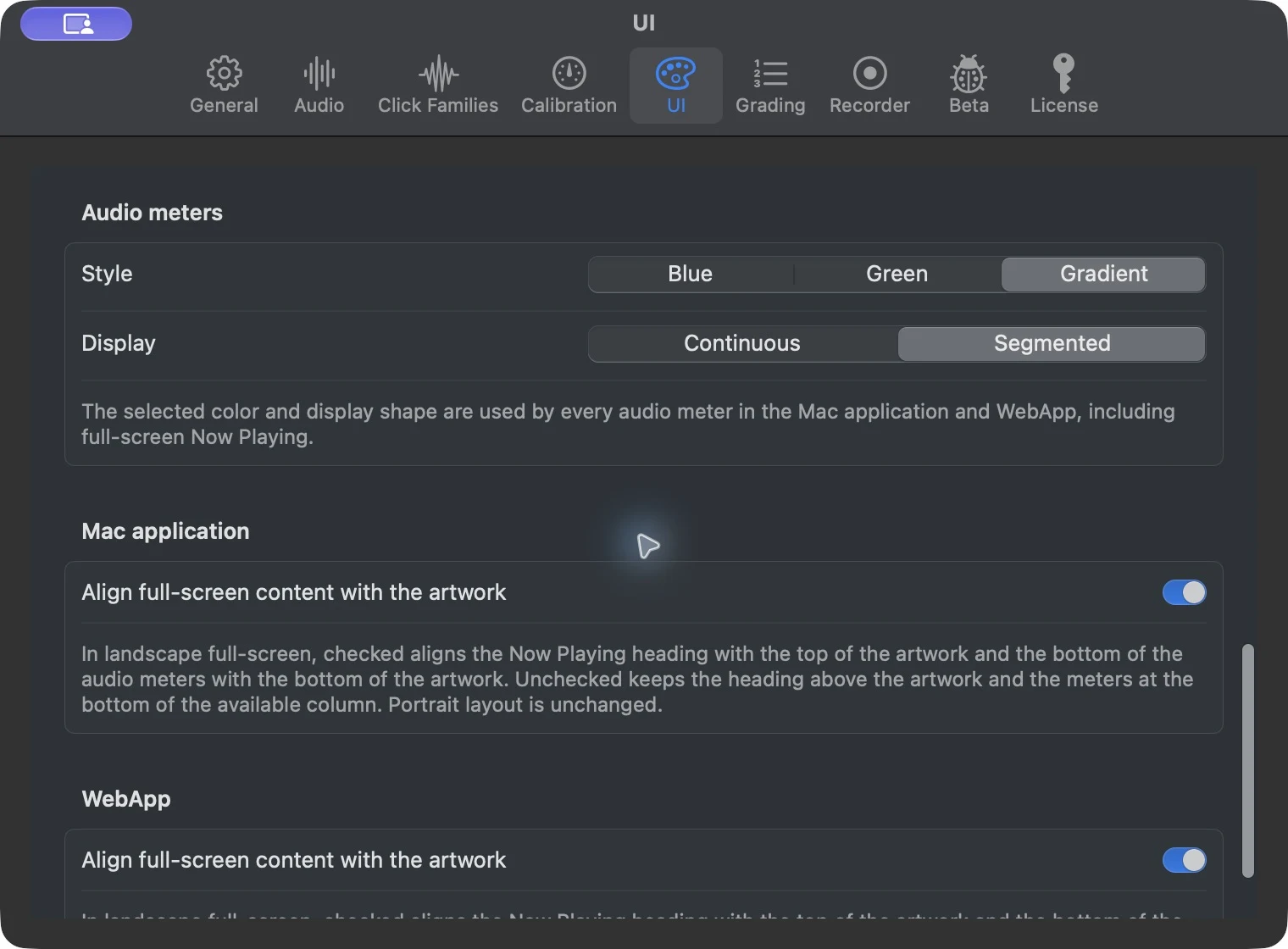
Meter colour offers Blue, Green or Gradient; Meter display offers Continuous or Segmented. Native and WebApp full-screen alignment have separate switches that affect landscape, not portrait.
The optional clock offers Alternate, Digital or Analogue display. Show after Shazam pauses sets a delay of 1–60 minutes (default five), measured after recognition pauses rather than any arbitrary audio pause. On Mac it appears in the full-screen window; the WebApp can show the selected clock on its idle view. Click to dismiss it; recognition resuming hides it. Disabling Shazam disables this idle recognition clock.
Grading and Custom profiles
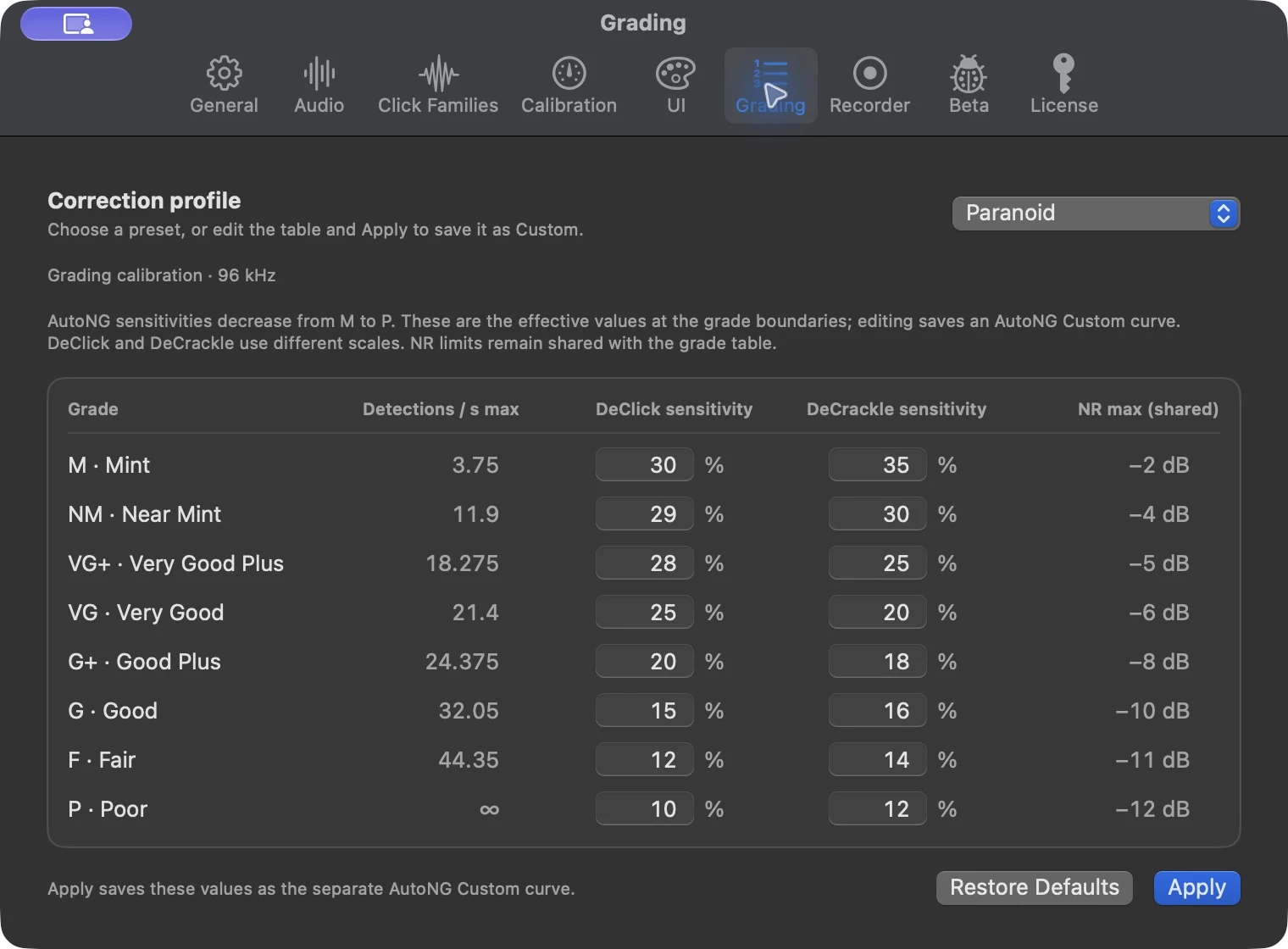
Select Paranoid, Light, Mid, High or saved Custom. The DeClick and DeCrackle AutoNG sensitivity curves decrease from M to P in the built-in profiles: these are not the old increasing “maximum repair” tables. The grade thresholds are calibrated for the active native sample rate; NR limits are shared across the presets.
- Choose the closest preset as a starting point.
- Edit the Custom DeClick and DeCrackle sensitivity values (0–100%). Zero bypasses that stage for the corresponding curve point.
- Apply the complete valid curve as Custom. The UI validates it before saving.
Grade boundaries and NR limits are read-only in this Mac editor. Restore Defaults restores Mid, the product default. See the current profile tables for comparison.
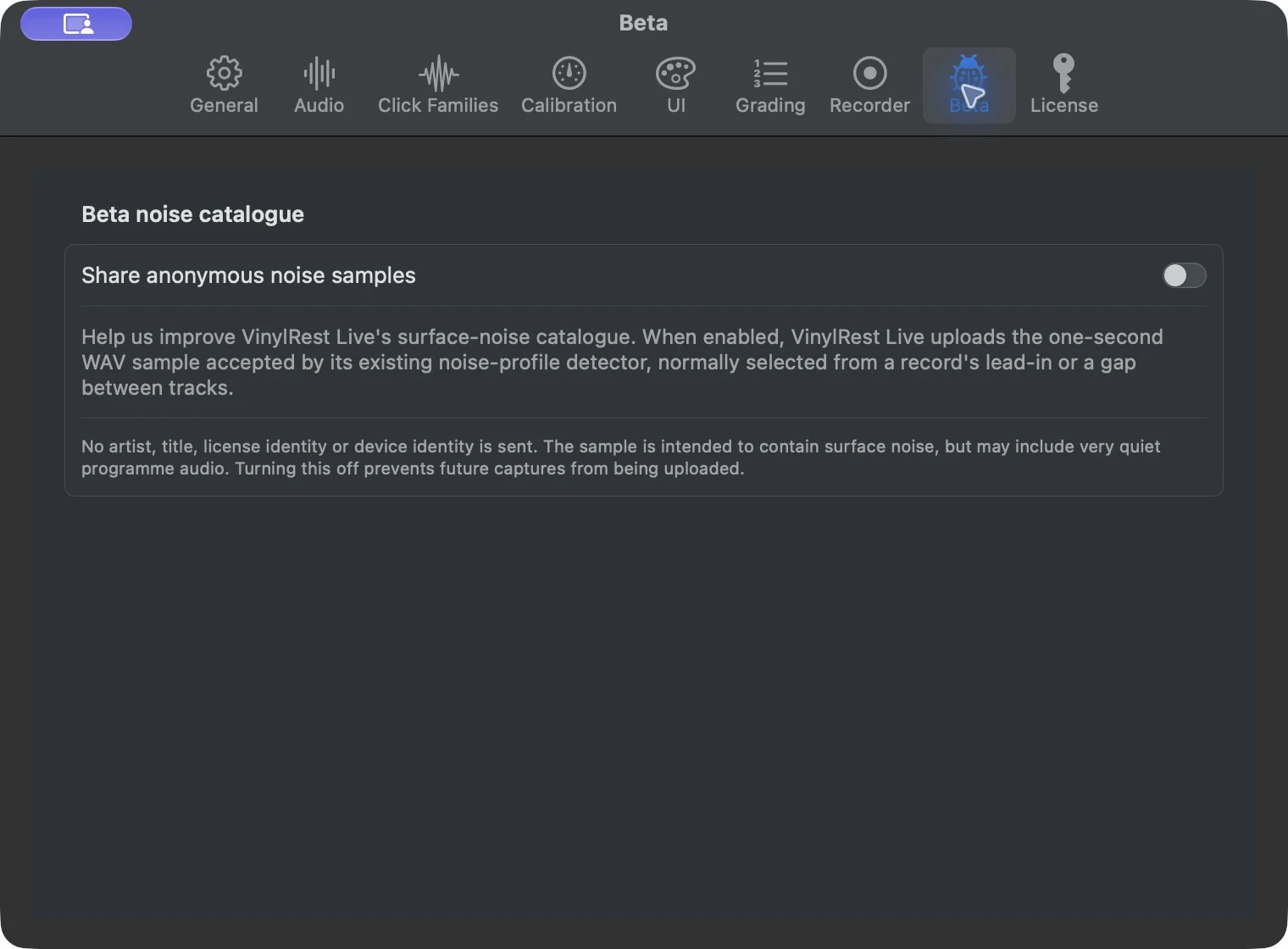
Beta: anonymous noise samples
Share anonymous noise samples is off by default. When explicitly enabled, accepted one-second noise WAV samples can be sent to improve restoration. They exclude artist/title, license identity and device metadata, but very quiet programme audio can still occur in a noise capture. Disable the option to prevent future uploads; this does not delete samples already received.
For a reproducible defect with diagnostic context, use audio problem reporting instead.
License and edition-specific tabs
License settings show this installation, access status and validation date, with native activation, recovery and deactivation controls. See Beta licensing for the full procedure. A Recorder tab may appear in the Archivist edition used for some captures; it is not a standard Live recording feature.