Beta license and updates
| Symptom | Checks and solution |
|---|---|
| License required | Open the native License window, request a free Beta license or enter the complete emailed key, then select Activate. Activation cannot be completed from the WebApp. |
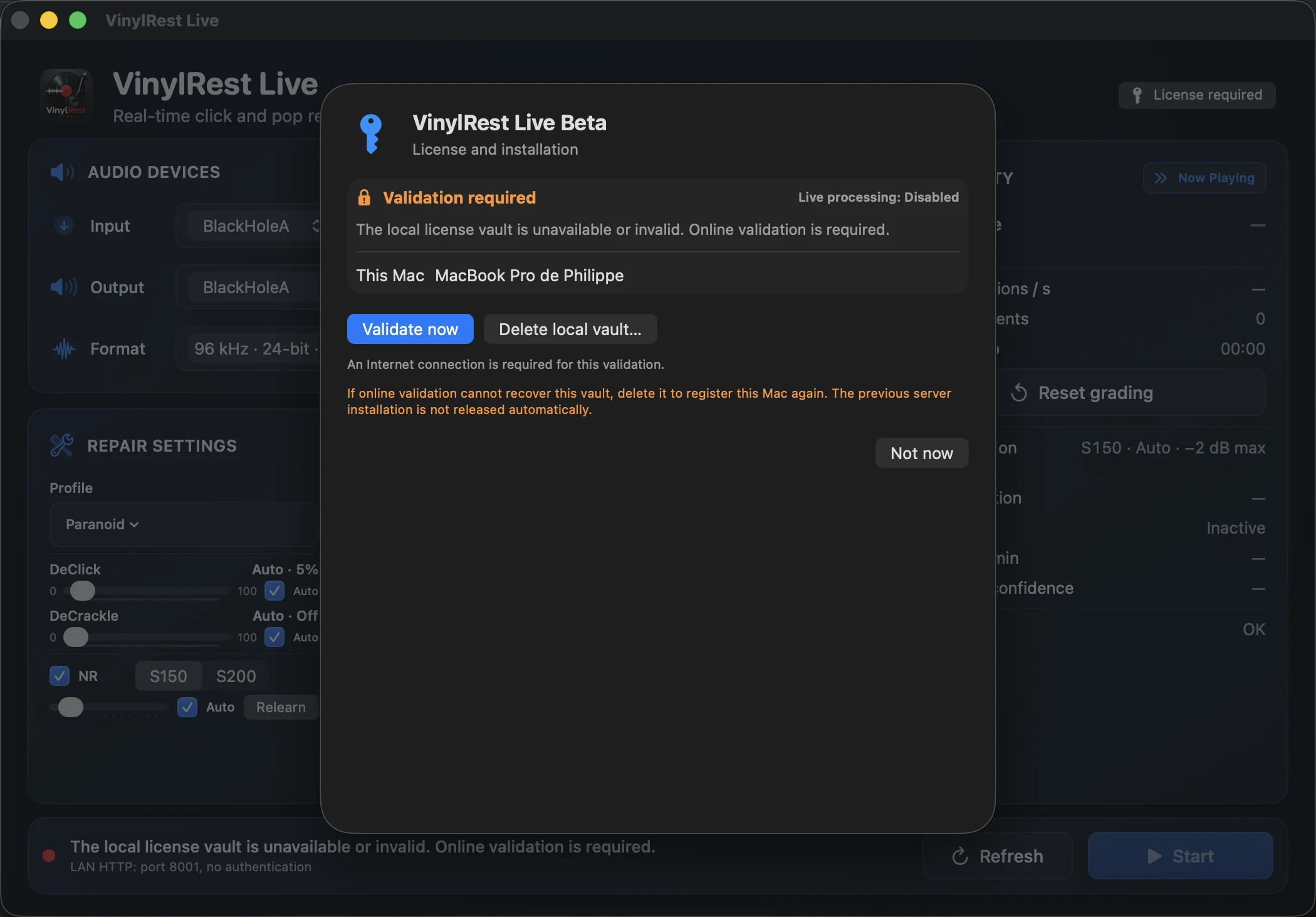
| Validation required | Connect the Mac to the Internet and select Validate now. If macOS date or time is incorrect, correct it before retrying. |
| Local license vault is unavailable or invalid | Try Validate now first. If the vault cannot be recovered, stop audio and select Delete local vault… before activating again. This does not automatically release the former server installation. |
| All three installations are in use | Review the named least-recently-used installation shown by Live. Select Replace and activate only when you intend to release that installation. |
| License key is lost | Select Lost your license key?, enter the license email and request recovery. The response is neutral; mail is sent only for an eligible matching license. |
| Update interrupts listening | Choosing Update intentionally stops audio processing before installation and relaunch. Finish the current side before accepting an update. |
| In-app update is unavailable | Use the latest Universal 2 DMG from the product page as a manual fallback, then launch the new build online for its exact-build Beta validation. |
Audio setup and startup
| Symptom | Checks and solution |
|---|---|
| Start is unavailable | First confirm that the dashboard reports an active Beta license. Then select an input, an output and a compatible format. Stop any other application that has exclusive control of either device, then select Refresh. |
| No input device | Reconnect or power on the interface. In System Settings → Privacy & Security → Microphone, allow VinylRest Live to capture audio. Relaunch the application after changing permission. |
| No common format | Set the input and output to the same nominal sample rate, bit depth and stereo channel count in Audio MIDI Setup. VinylRest Live does not normally convert mismatched formats. |
| Processing stops after a device change | This is intentional. Reconnect the device, select Refresh, verify the route and press Start again. VinylRest Live does not silently restart after a hardware topology or nominal-format change. |
| Start fails after sleep | Wake and stabilize the audio devices first. Select Refresh, confirm that the same device UIDs and format are available, then restart processing. |
No sound or unexpected sound
| Symptom | Checks and solution |
|---|---|
| Output meters do not move | Select Repaired or Original monitoring, confirm the turntable is using a phono preamp when required, verify the interface input and hardware gain, and check Microphone permission. The meters follow the signal currently sent to the output. |
| Meters move but there is no output | Verify the selected Output, the downstream amplifier and the Monitoring signal. Use Original briefly to check the route without restoration or tone. Enabled convolution still affects Original; select Off and manually Stop/Start to test without the room filter. |
| Only removed sound is audible | Monitoring is probably set to All, Clicks or Noise. Select Repaired for normal listening or Original for an aligned unprocessed comparison. |
| Output clips | Inspect IN/OUT and CLIP. Reduce interface or preamp gain for input clipping; reduce tone boosts, filter gain or Master gain for output clipping. Keep peaks below 0 dBFS. The master control can add up to +6 dB and cannot restore headroom already lost at the input. |
| Clicks sound over-corrected | Select Paranoid and enable DeClick Auto. Compare Repaired with Original or listen to Clicks. If necessary, disable Auto and reduce DeClick manually; leave DeCrackle unchanged so the comparison isolates one stage. |
| Music changes when NR is active | Listen briefly to Noise, choose conservative S150, reduce the manual maximum or enable NR Auto. The built-in profiles share the same NR grade limits; Paranoid only lowers the click/crackle sensitivity curves. |
Tone and convolution filters
| Symptom | Checks and solution |
|---|---|
| Filter selection remains Pending | Manually Stop, then Start. Live does not restart itself when a convolution profile is selected or switched Off. |
| No filter at the selected rate | Use an audio rate included in the package or obtain an exact-rate set from the provider. Live does not resample impulse responses or silently choose a neighboring rate. |
| ZIP import rejected | Check the compatible four-route stereo matrix configuration, zero route delays and equal-length stereo PCM32 WAV impulse responses. An arbitrary WAV, plug-in, multichannel package or every ZIP intended for Roon is not necessarily supported. |
| Cannot import from the WebApp | Import ZIP in the native Sound Shaping card. The browser can only choose profiles already in the Mac library. |
| Original still sounds filtered | Convolution affects both Repaired and Original. Disable convolution and manually Stop/Start for an unfiltered output comparison. Warmth/Air affects only Repaired. |
| Dropouts with a room filter | Check Engine Misses, XRuns and Errors. Longer filters and higher rates add CPU demand and latency; try Safe buffering or a lower supported session/filter rate. Disable the filter and restart to isolate its contribution. |
Dropouts, latency and performance
| Symptom | Checks and solution |
|---|---|
| XRuns increase | Stop processing, select Safe buffering in Settings → Audio, close CPU-heavy applications and restart. Check cables, hubs and interface drivers. |
| Errors increase | Stop immediately and inspect the status message. A persistent transport error requires a fresh start after the audio route is stable. |
| Latency is too high | Try Balanced after a stable session. Try Low latency only if Transport remains at XRuns 0. The displayed estimate excludes device, driver and downstream latency. |
| Buffering change has no effect | The selected buffering profile applies on the next Start, or Apply Now deliberately restarts the current route. Either method interrupts audio. |
| CPU remains unexpectedly high | Note the sample rate, method, correction activity and duration. Stop processing: CPU should fall close to idle. Relaunch the application and collect a sample if usage immediately returns to the previous high value. |
Grading and Auto controls
| Symptom | Checks and solution |
|---|---|
| Grade remains — | Play non-silent audio and wait for the first complete grading window of about ten seconds. If the native rate is not calibrated, the grade remains Uncalibrated rather than using another rate's thresholds. A reset or side change discards a window that crosses the new boundary. |
| Grade pauses | The input may be below the configured silence level for the configured duration. This is expected at the end of a side. |
| A repair sensitivity does not change | Auto may be waiting for a complete rolling observation after Start or Reset. Allow approximately 3.6 to 5.4 seconds of fresh non-silent audio. |
| A sensitivity slider cannot be moved | That stage's Auto control owns its effective sensitivity. Disable the corresponding Auto switch if you want manual control. |
| NR slider cannot be moved | NR Auto owns the effective value and moves the disabled slider as decisions change. Disable NR Auto to restore the preserved manual value. |
| NRNG keeps waiting or bypassing | Use a music-free lead-in or gap, check Calibration and the maximum capture level, then Relearn. Acquisition evaluates four seconds to choose a median-level one-second candidate. Generic or an existing profile may remain active during acquisition. Raise −55 dBFS only cautiously to avoid learning quiet music. |
| NRNG acquisition captured music | Lower the maximum capture level, move to a clean lead-in or run-out and select Relearn. Values above −55 dBFS increase the risk of accepting quiet music. |
| NRNG maximum stops at 12 dB | This is the manual and automatic product limit for S150 and S200. The built-in profiles share the same grade-dependent NR limits. |
| Invariant violations increase | Stop processing and record the visible profile, transition, confidence, gain and Transport diagnostics. Restart only after the audio route is stable. |
| Grade and Audio Repaired disagree | This is expected. Grade uses an independent fixed reference and a session median; the graph shows the percentage of stereo frames changed by the audible click/crackle stages, not detections per second or a listening-quality score. |
Now Playing and recognition
| Symptom | Checks and solution |
|---|---|
| No track identified | Recognition is optional and best-effort. Confirm Enable Shazam recognition is on in Settings → UI and check Internet access, play a clear musical passage and wait. Very short, noisy or heavily altered passages may not match. |
| Wrong track appears briefly | VinylRest Live requires stable agreement before confirming a match, but catalog recognition can still be wrong. Let it continue listening; a better match may replace the result. |
| Now Playing clears at the run-out | This is intentional. Sustained silence ends the side, pauses recognition and removes stale metadata. |
| No artwork | The match may not include artwork, or the artwork host may be unreachable. Track text can still be valid. Check Internet access and content blockers. |
| Genre looks generic | English genre names depend on the metadata available from the catalog. Some matches provide only a broad category. |
WebApp connection
| Symptom | Checks and solution |
|---|---|
| Page does not open | Enable HTTP server, use the displayed LAN address and confirm both devices are on the same network. Do not use localhost on the remote device. |
| Connection stays orange | Refresh the page, close duplicate WebApp tabs and verify that the Mac is awake. On an older iPad, fully close Safari and reopen the Home Screen WebApp or page. |
| Dashboard is stale | The Mac may have received a new IP address. Reopen Settings → General and use the current URL. Disable private/client isolation on the Wi-Fi network if it blocks devices from reaching each other. |
| Port conflict | Select another unused port in Settings → General, then use the updated URL. |
| WebApp works on Mac only | Check the macOS firewall and Local Network permission. Guest Wi-Fi and some mesh configurations isolate clients by design. |
| Old artwork or layout is cached | Reload the page, close the Home Screen WebApp and reopen it. If necessary, remove and add the Home Screen icon again after confirming the Mac serves the current version. |
Audio capture and report troubleshooting
Use Audio diagnostics to capture a reproducible defect. On Mac, capture is local until explicit Send. The WebApp's Send audio problem starts capture and anonymous upload directly.
| Symptom | Checks and solution |
|---|---|
| Capture has less history | Start-up, interruptions or an unavailable stage can shorten the ten-second pre-marker history. Missing audio is not filled with invented silence. |
| Cannot preview a capture | Stop Live first. Preview uses the current Mac output device and ends if Live is started or configured again. |
| Capture is only in memory / saving failed | Free disk space and use Retry saving before quitting. An unsaved capture is lost if the application quits; previously saved and exported captures remain. |
| Capture storage is full | Review the saved captures and export anything to keep before deliberately removing local copies. Storage is bounded to eight captures and 2 GiB; there is no automatic eviction. Removal is permanent and does not delete exported or server copies. |
| Upload failed or application restarted | Restore connectivity and explicitly retry the existing report. A retry sends its frozen audio/context with the same request identity. Stored unfinished reports are not automatically uploaded at launch. |
| Browser closed but report continued | An accepted background upload is independent of the page. Closing, refreshing or losing the WebApp connection is not cancellation. |
| Receipt but no response yet | The receipt confirms server acceptance, not analysis or email delivery. Anonymous reports have no reply address; native email notifications require a separate opt-in. |
Programme audio is included: review before sharing where the native workflow permits it. Do not confuse deliberate problem reporting with the separate, optional one-second anonymous noise-sample setting.
Collect useful diagnostics
When reporting a reproducible issue, include:
- VinylRest Live version and build.
- Mac model, processor and macOS version.
- Input and output device names.
- Sample rate, bit depth, buffering profile, S150/S200 selection, acquisition level, Auto/manual settings, enabled click families, tone values and active convolution profile/rate.
- Whether the problem appears with Original as well as Repaired.
- Engine Misses, input/output peaks, clipping counters, Transport XRuns and Errors, plus the visible NRNG profile, transition, gain, protection, confidence, invariant and Auto-decision diagnostics when relevant.
- The steps and elapsed time required to reproduce it.
Use Console.app to filter for the VinylRest Live process and save the relevant interval. For performance growth, Activity Monitor can create a process sample. Avoid posting logs publicly if they contain local IP addresses or personal metadata.