
What folder mode includes
Folder discovery is intentionally non-recursive. VinylRest includes supported regular audio files directly inside the selected folder and does not enter subfolders.
| Entry | Queue behavior |
|---|---|
| Supported WAV, AIFF, FLAC or ALAC file | Inspected and queued when valid |
| Subfolder | Skipped |
| Hidden file | Skipped |
| Symbolic link | Rejected or skipped; never followed as a source |
| Unsupported or invalid audio | Shown as Failed with the inspection reason |
Generated -restored or Debug audio | Shown as Ignored so an earlier output is not processed again |
Rename a generated file only if you deliberately want to treat it as a new source. Duplicate, case-equivalent or Unicode-equivalent names that would collide are rejected before the batch begins.
Build and review the queue
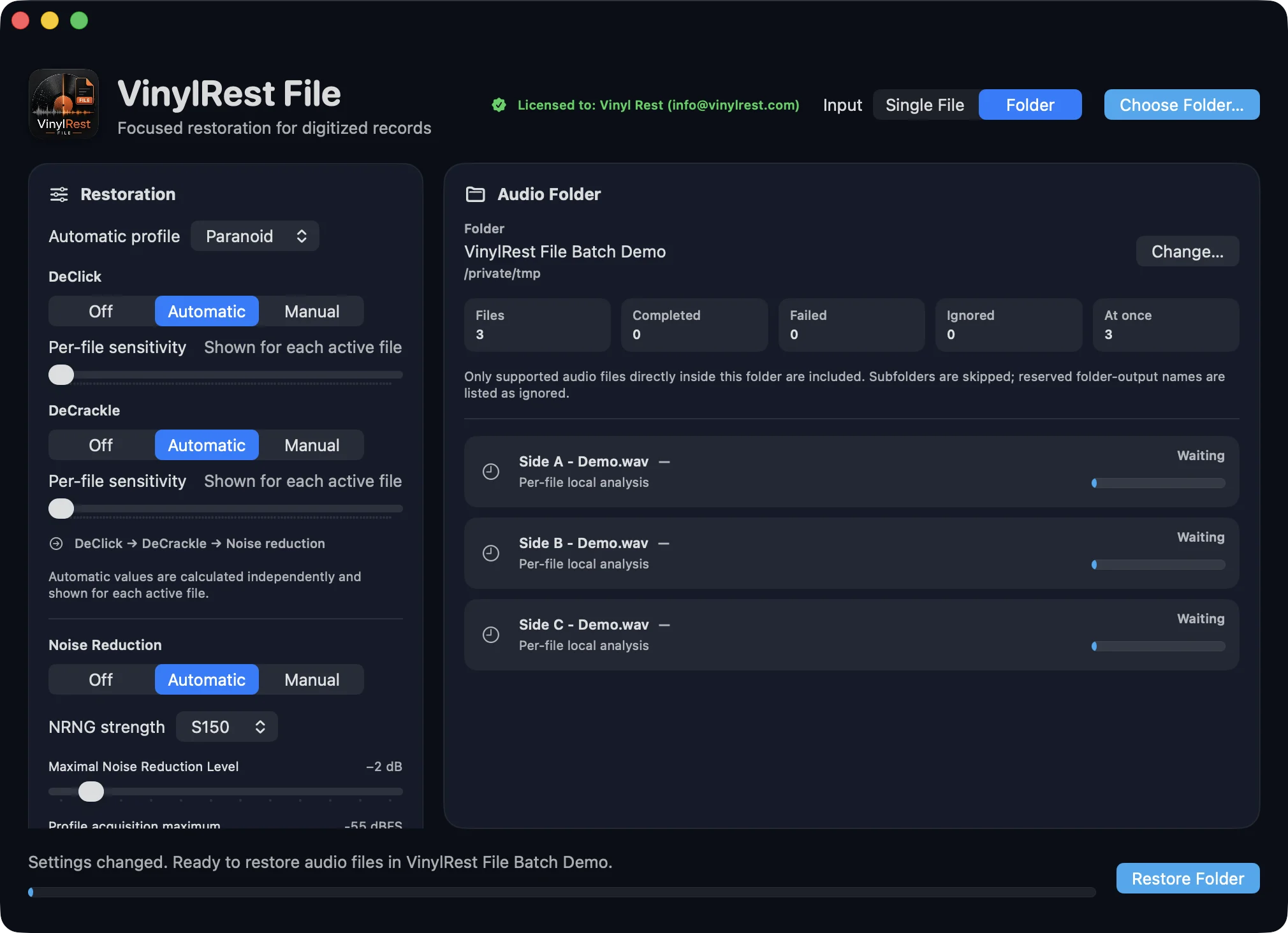
- Select Folder in the Input selector.
- Select Choose Folder…, or use File → Open Folder… /
⇧⌘O. - Choose a folder. VinylRest inspects every supported top-level candidate.
- Review the counters for Files, Completed, Failed, Ignored and At once.
- Read any Failed or Ignored row before starting. These rows do not prevent other valid files from being restored.
Choose how many files run at once
Open Settings → Processing to set Files processed at once. The allowed range is 1 through the Mac’s active processor count.
Every file uses the current fixed NG2 sequential restoration path and the same immutable settings snapshot taken when the batch starts.
- Use Recommended
- Chooses a machine-aware value based on processor count, the current engine budget and whether the selected folder contains compressed files.
- Lower value
- Reduces CPU, memory, helper-process and temporary-storage pressure. Use 1 for the easiest troubleshooting and most predictable storage load.
- Higher value
- May improve throughput on a fast Mac and SSD, but can reduce per-file speed or become storage-bound.
Existing output confirmation
Before any task starts, VinylRest derives every restored-audio and report destination. If requested outputs already exist, one warning lists the complete existing-output manifest.
- Replace Outputs and Start authorizes only the exact regular files shown in the warning.
- Cancel leaves the folder unchanged.
- Source files are never included in replacement authorization.
- If an authorized file changes after confirmation, that job stops instead of overwriting the changed file.
Run and monitor the batch
- Select Restore Folder.
- Follow each row’s Waiting, Processing, Completed, Failed, Cancelled or Ignored state.
- During Automatic processing, the row shows its own local grade, DeClick, DeCrackle and NR values.
- Watch the footer for completed count, active count and frame-weighted overall progress.
- After completion, review the total elapsed time and batch average per successfully restored file.
When a row completes successfully, select its Compare button to load that file’s Source, Clicks and Output into the synchronized Comparison Player. Selecting another completed row replaces the current comparison without changing any published file.
Failure and cancellation behavior
A failure in one file is recorded in that row and does not automatically discard successful siblings. Select Cancel to request cooperative cancellation:
- waiting jobs become Cancelled;
- active jobs stop at a safe cancellation point and remove temporary files;
- no partial output set is presented as complete;
- jobs already published remain completed;
- the footer reports how many files completed before cancellation.
If the source changes after the queue was built, the affected job reports that the source changed after folder preflight and does not process it. Choose the folder again to build a new snapshot.
Organizing larger collections
- Process one album or consistent transfer session per folder.
- Move completed outputs to a delivery folder after reviewing them; generated outputs are intentionally ignored if the source folder is selected again.
- Use a completed row’s Compare button for a synchronized Source, Clicks and Output check. Use Single File mode when a record also needs separate restoration settings.
- Keep several gigabytes free when restoring high-rate compressed material in parallel.