Install the first update-capable Beta
Build 8 is the first VinylRest File release that can update itself. Install it manually from the signed Universal 2 disk image:
- Open the downloaded disk image.
- Drag VinylRest File to Applications.
- Replace an older Beta when Finder asks, then open the application from Applications.
Request a free Beta license
When no usable license is present, VinylRest opens the License sheet automatically. You can also open Settings → License or use the license control in the main window.
- Open Request a free Beta license.
- Enter your first name, last name and email address.
- Choose separately whether you want marketing email; consent is optional.
- Submit the request and follow the instructions sent to your email address.
Activate this Mac
- Paste the complete license key into the activation field.
- Choose Activate and wait for online validation.
- Confirm that the License tab shows Beta active, Restoration: Enabled and the licensed identity.
The human-readable key is used for activation and is not retained. Signed local state is stored for this application and this Mac.
Recover, replace or deactivate an installation
- Lost your key?
- Enter the license email in the recovery area and request recovery instructions.
- Three installations in use
- VinylRest names the least recently used installation and asks for explicit confirmation before replacing it. Replacement is never automatic.
- Installation replaced
- Use the reactivation action. If all installations remain occupied, review and confirm the proposed replacement.
- Deactivate this Mac
- Use Deactivate when you no longer need restoration on this Mac. Confirm the warning before the local installation is released.
- Unreadable local state
- Follow the recovery action shown in the License tab, then activate or recover the license again.
Check for signed updates
Open Settings → Software Updates. Leave Automatically check for updates enabled for notification of later Beta builds, or choose Check for Updates… at any time.
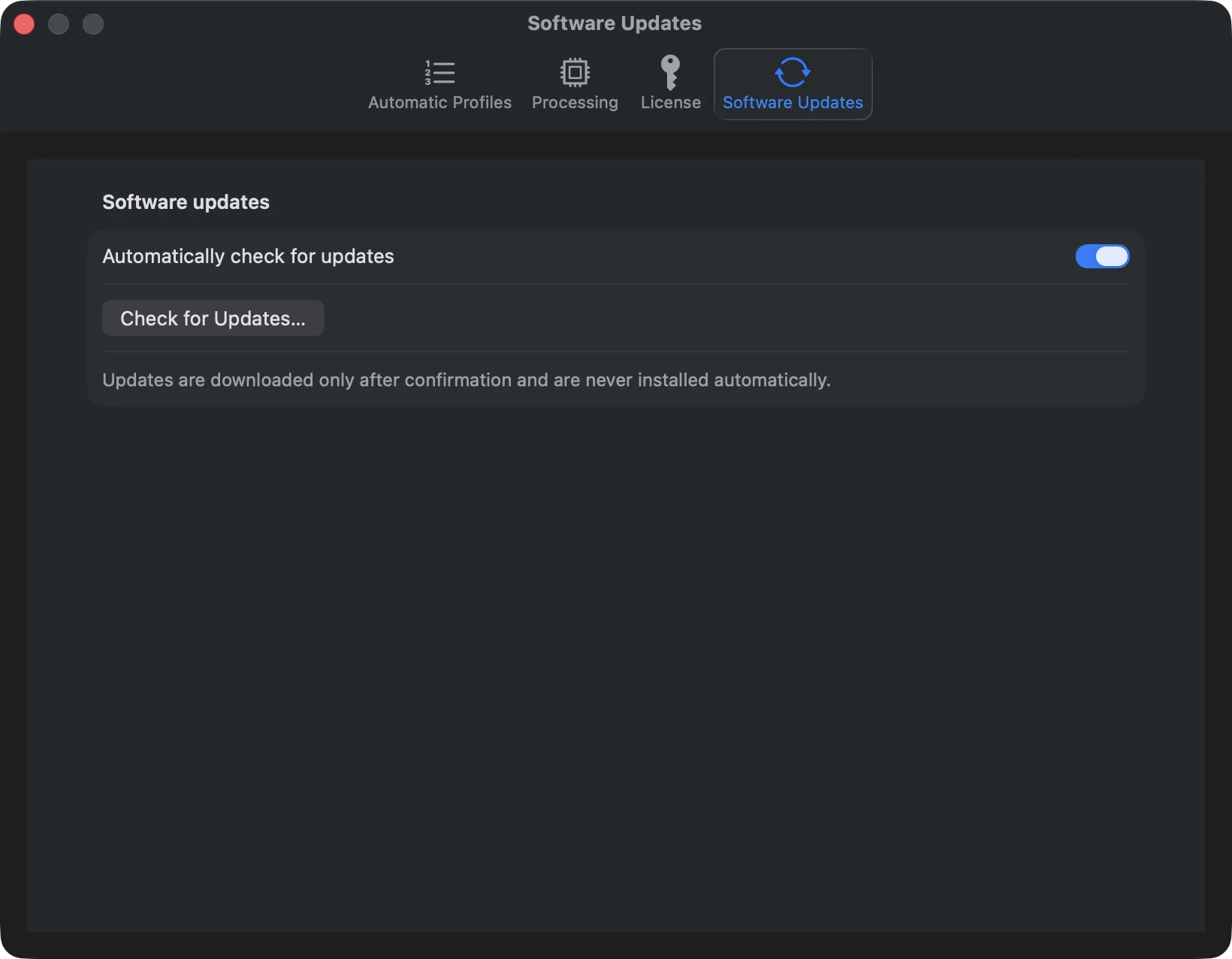
- An update is downloaded only after you approve it.
- An update is never installed automatically.
- If a restoration is active, an accepted installation waits until processing has finished.
- Closing the application during an active restoration follows the normal completion and cancellation safeguards.
Command-line licensing
The bundled command-line tool remains headless. Help is available without a license, but a real processing command validates the same local installation before reading or publishing audio. If authorization is unavailable, open the graphical application to activate or validate this Mac; there is no command-line license-key option.