Audio interface and connectors
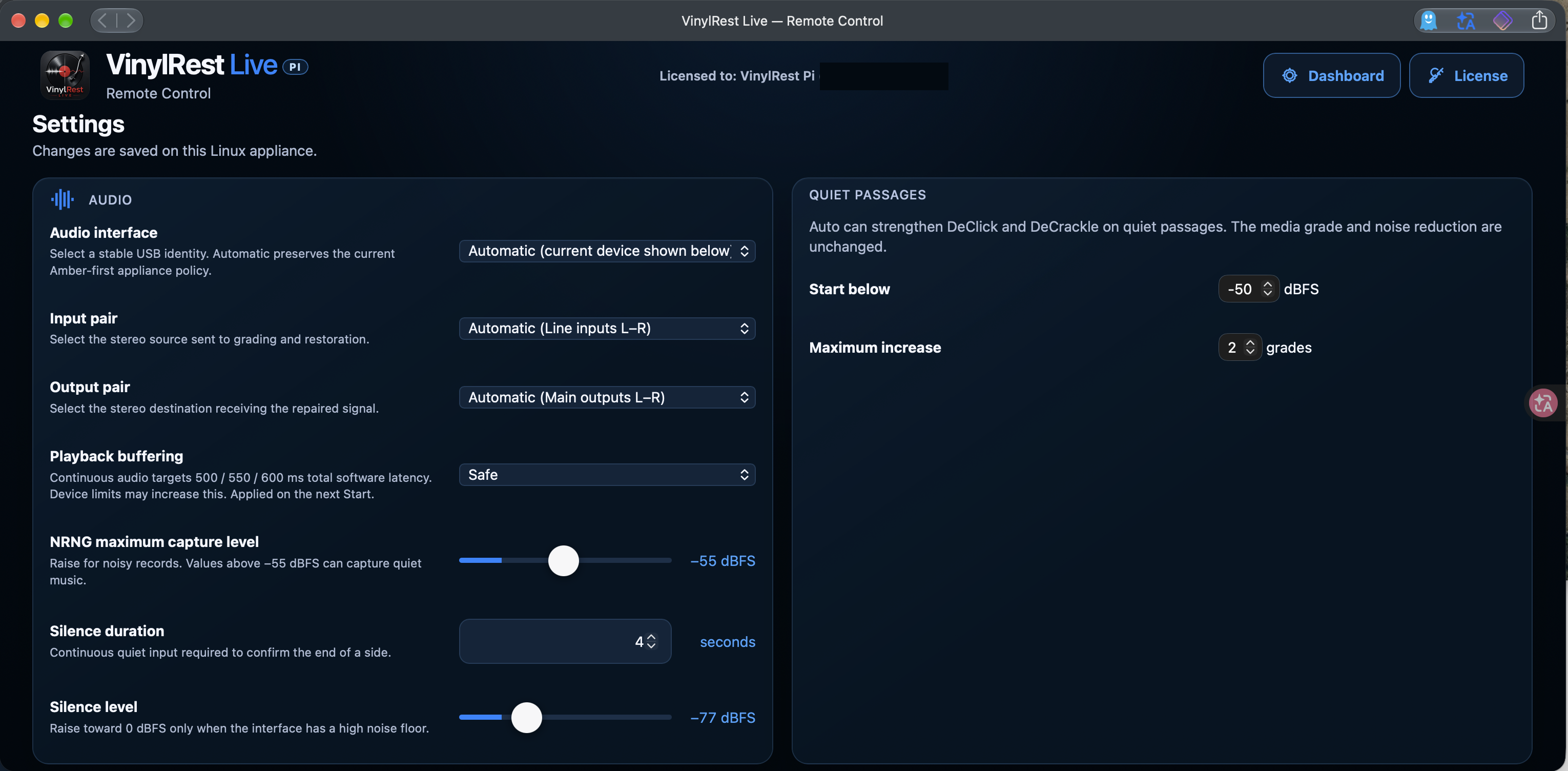
Open Settings from the dashboard. Audio interface lets you retain Automatic selection or choose a specific USB device. The preference follows the device's stable USB identity rather than a changeable Linux card number.
Input pair selects the stereo source used for restoration and grading; Output pair selects the destination receiving repaired audio. Multichannel interfaces remain stereo for processing: choose the pair connected to your phono stage and amplifier. The Amber i1 example uses Line inputs L–R and Main outputs L–R.
Interface and pair changes may interrupt audio while the session reopens. Check the status bar afterwards. To change the sample-rate preference, use Configurator → Audio sample rate.
Playback buffering
The available buffering profiles target approximately 500 / 550 / 600 ms total software latency. Device constraints can increase that delay, and hardware adds its own contribution. Safe is a sensible starting point. A buffering change takes effect on the next Start.
Use a single monitored path through the Pi. Mixing your interface's direct monitoring with the processed output can produce an echo or a hollow sound because the paths arrive at different times.
Noise capture and silence
- NRNG maximum capture level
- The loudest eligible noise for local profile capture. The shown starting value is −55 dBFS. Values closer to 0 dBFS can admit quiet music, so raise the ceiling only when justified by the groove noise.
- Silence duration
- How long the input must stay quiet to confirm the end of a side. The example uses 4 seconds.
- Silence level
- The input threshold for silence detection. The screenshot's −77 dBFS is an example, not a universal setting. Calibrate it for your powered audio chain.
- Quiet passages
- Start below and Maximum increase govern extra automatic click/crackle correction in quiet passages. The shown settings are −50 dBFS and two grades.
The calibration chapter explains how to measure the input before changing these thresholds.
Interface and listening-room display
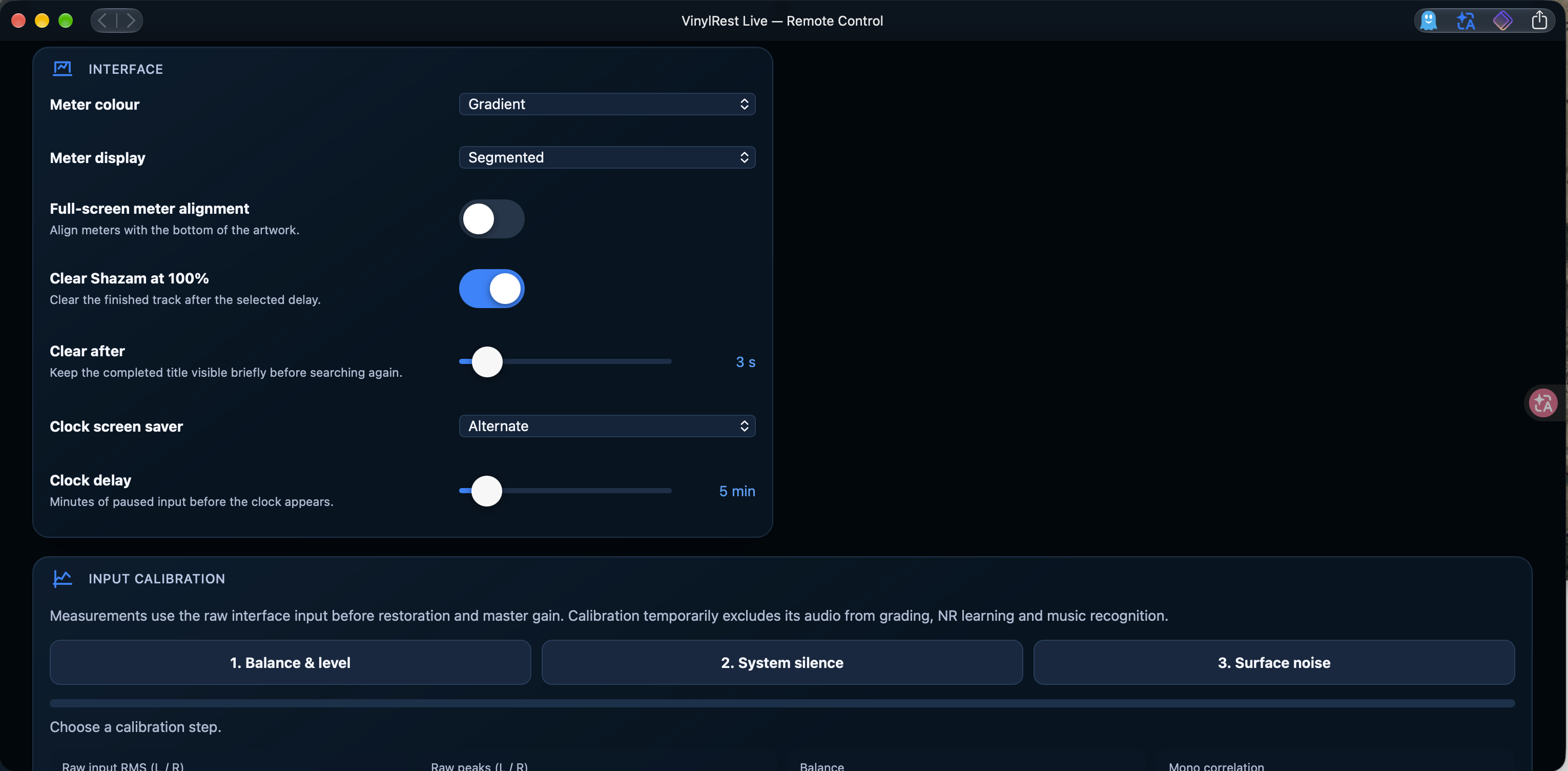
- Meter colour and Meter display select the appearance of output levels.
- Full-screen meter alignment aligns the meters with the bottom of the artwork.
- Clear Shazam at 100% and Clear after control how long a completed recognised track remains visible.
- Clock screen saver chooses the idle clock behaviour.
- Clock delay sets the number of minutes of paused input before the clock appears.
Ordinary settings are saved on the appliance automatically. The correction-profile editor has its own Apply as Custom action; system configuration uses its separate Save buttons. Restoration and grading explains the correction-profile table.