Check for updates
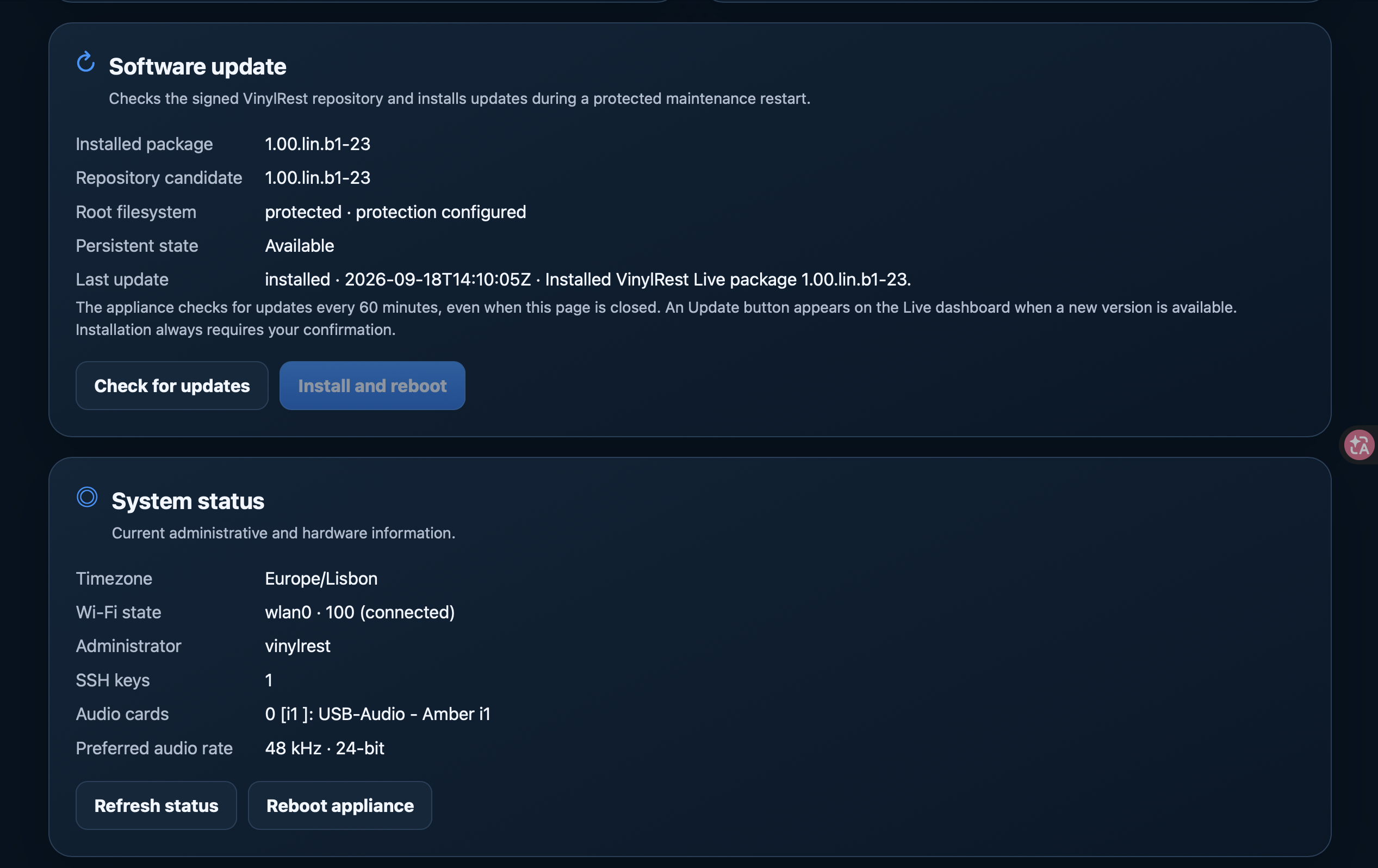
The appliance checks its signed VinylRest repository about three minutes after boot and every 60 minutes afterwards, even when the browser is closed. A newer version makes an Update button appear on the Live dashboard.
Checks do not install software automatically. Use the dashboard Update button and confirm, or open the Configurator and select Check for updates, followed by Install and reboot when a newer candidate is available.
- Finish your listening session and mute or turn down the amplifier.
- Review the installed and candidate package versions.
- Start the installation and confirm the interruption.
- Allow the protected maintenance and reboot cycle to finish without removing power.
- Use Discovery to reconnect, then check the installed package, update result and audio status.
The normal operating-system root is protected; settings and license state live in persistent storage. The appliance's update workflow handles the required maintenance cycle. An identical installed and candidate version means there is nothing newer to install.
Download diagnostics before rebooting
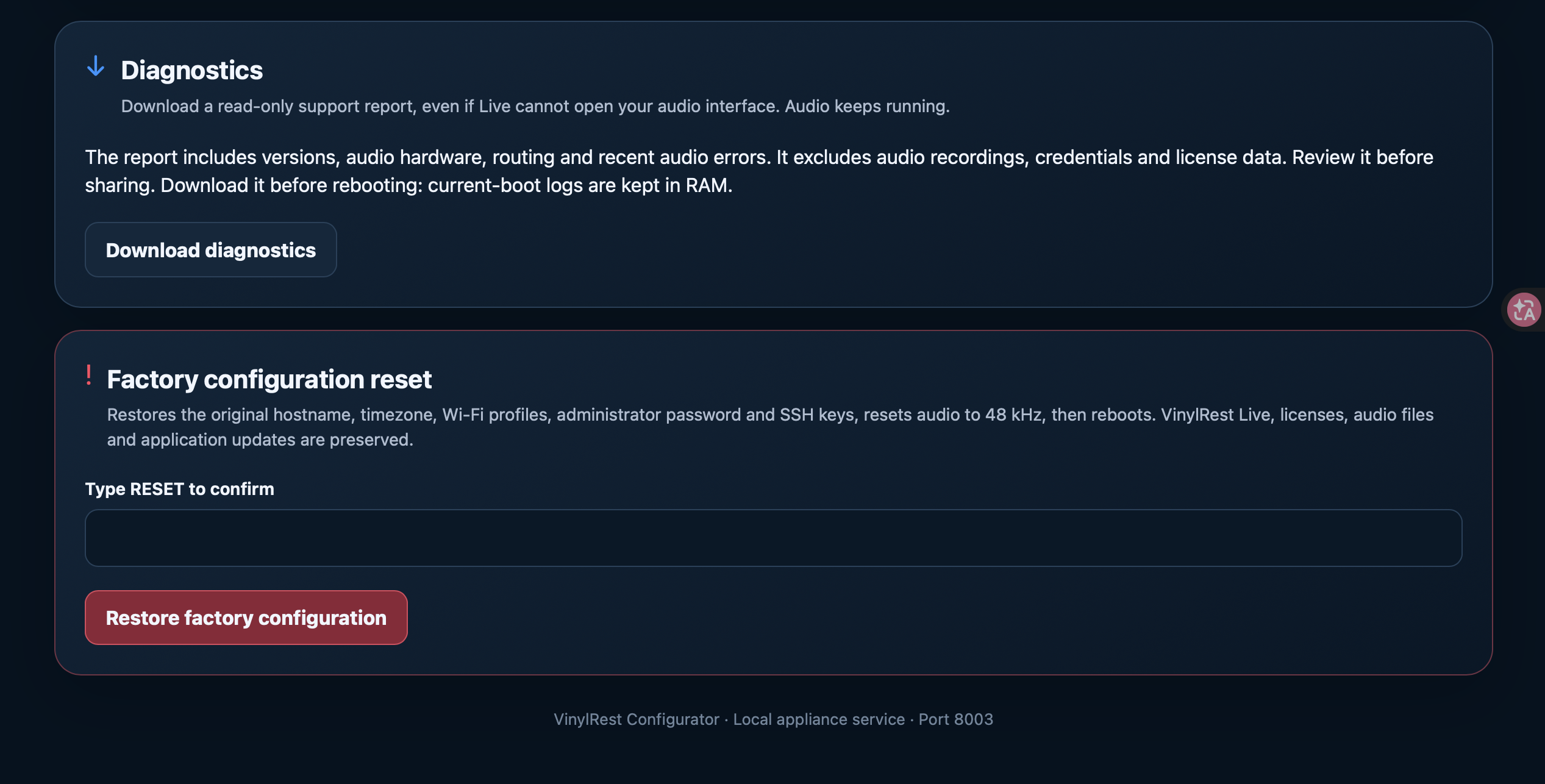
Select Download diagnostics while the problem is present. It works even if Live cannot open the USB interface or has no activated license, and generating the report leaves audio running.
The report includes software versions, hardware and routing information, audio counters and recent relevant errors. It excludes audio recordings, credentials and license data. Review it before sharing it with support. There is no automatic upload.
Factory configuration reset
Reset restores the original hostname, timezone, Wi-Fi configuration, administrator password and SSH keys, returns the preferred audio rate to 48 kHz, then reboots. It preserves VinylRest Live, the license and installation identity, audio files and installed application updates.
- Have Ethernet available if you currently depend on Wi-Fi, and record any network details you will need again.
- Read the reset card, type RESET and choose Restore factory configuration.
- Wait for the reboot, find the Pi again and configure the network and administrator access as required.
Reset is not an operating-system reinstall and does not revoke your license. If the card no longer boots, use the supplied image to reflash it; reflashing erases the destination card. Release the device installation first when you still have access to the License page.